How to Turn a PDF Page Into a Clickable Preview in HTML

Show the first page of a PDF as a small picture on your website. When a visitor clicks the picture or the words below it, they get the complete document.
Try the café menu on your phone or computer. The preview shows Breakfast & lunch. Tap it to find Drinks & sweets on page two. Open the finished café page.
Start with the practice files
You'll need a browser and a text editor. Download the café menu project and extract the ZIP. Open the folder that contains cafe-menu.html, menu.pdf and menu-preview.jpg. To make the preview yourself, copy just cafe-menu.html and menu.pdf into a new folder. You'll add the JPG there next.
For your own website, use the HTML page you want visitors to see and put your PDF beside it. You can also download the two-page practice PDF on its own.
How to save PDF as JPG in your browser
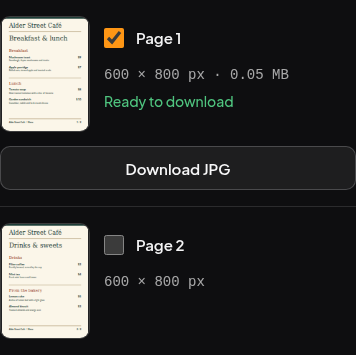
- Open the Phoenix Code PDF to JPG Converter. Select Choose PDF and open
menu.pdf. Two page previews appear. - Under Resolution, choose Custom. Set Size by to Pixels, enter
600in Width (px) and leave Height (px) empty. The converter keeps the proportions of your page. - Under Pages to export, enter
1. Check that the tool says 1 of 2 pages selected. Only the breakfast page should be checked. - Select Convert selected pages. When page one says Ready to download, select its Download JPG button. The practice file downloads as
menu-page-1.jpg, at 600 × 800 pixels. - Rename the download to
menu-preview.jpgand move it besidecafe-menu.htmlandmenu.pdf. Open the JPG to check that it shows the café name and the breakfast menu.
Link the image and its caption to the PDF
Open cafe-menu.html in your text editor. In the practice file, find this link just below </header>. On your own page, insert it inside <body> where the preview should appear.
<a class="menu-link" href="menu.pdf">
  <img src="menu-preview.jpg" alt="" width="600" height="800">
  <span>Read the full menu (PDF)</span>
</a>
src names the picture the browser shows. href names the file the link opens. If your document is called lunch-menu.pdf, use href="lunch-menu.pdf" and keep src pointed at your JPG. Change the caption to tell visitors which document opens.
Because the picture and the visible caption are inside the same link, a keyboard user reaches them in one tab stop. The caption already names the destination, so the image has an empty alt="". W3C guidance on images within links.
The practice page already has the following layout rules. On your own page, add them to your stylesheet or inside a <style> element in <head>. If you use a different JPG, update the HTML width and height to match its pixel dimensions.
.menu-link {
  display: inline-flex;
  flex-direction: column;
  gap: 0.75rem;
  width: fit-content;
  max-width: 100%;
}

.menu-link img {
  display: block;
  width: 18rem;
  max-width: 100%;
  height: auto;
}
Check the full menu
Save cafe-menu.html and open it in your browser. Click the picture. Depending on your browser settings, the PDF opens in a viewer or downloads. Open the file and check that page two contains Drinks & sweets and Lemon cake. Go back to the HTML page and try the caption. With a keyboard, press Tab until the menu link has a focus outline, then press Enter.
If the caption works but the picture is missing, compare src with the JPG's filename and folder. If the picture appears but the PDF fails to open, check href against the PDF's name. When you put the page online, include all three files and test the live link from your phone. For a link to another HTML page, see Link to another page in Phoenix Code.