How to Decode Base64 Text and Preview an Encoded Image

If you have a Base64-encoded message, paste it into Base64 Encoded in the Phoenix decoder and click Decode. If you copied something starting with data:image/png;base64, from an HTML file, you have a picture. Here’s how to read the message and see the picture.
Decode a text message
-
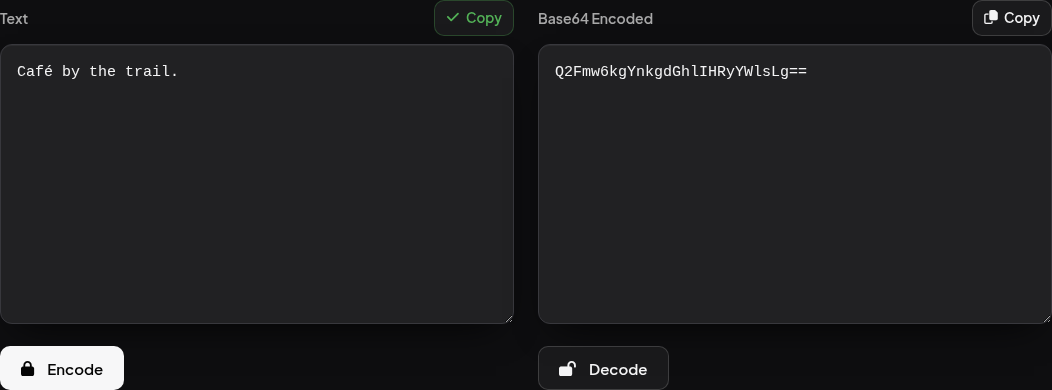
Open the Phoenix Base64 Encoder & Decoder. Find the box labeled Base64 Encoded.
-
Copy this whole string into the box, including the two equals signs at the end.
Q2Fmw6kgYnkgdGhlIHRyYWlsLg== -
Click Decode below that box. The Text box should now read Café by the trail. The accent in Café is part of the original UTF-8 text. Click Copy beside Text to keep the readable version.
-
To check it the other way, click Encode beneath the text. You should get the original string back, including its ending.
If the tool reports Invalid Base64 string, recopy the complete value. For example, Q2Fm% produces that error. Check for punctuation copied from the surrounding sentence or quotation marks from the HTML. A Base64 string by itself doesn’t tell you which kind of file it contains.
See an image copied from HTML
In a data URL, the part before the comma describes what follows. In data:image/png;base64,..., the type is PNG and the rest represents the image bytes. Keep the prefix and the bytes together when you use the URL as an image source. Data URL syntax
Open the Phoenix HTML Viewer and paste this complete image tag into HTML source. If the Viewer shows tabs, click Preview.
<img width="64" height="64" alt="Green square"
  src="data:image/png;base64,iVBORw0KGgoAAAANSUhEUgAAAAEAAAABCAIAAACQd1PeAAAACXBIWXMAAAPoAAAD6AG1e1JrAAAADElEQVQImWPQqwkCAAHYAP0XYDMkAAAAAElFTkSuQmCC">
The preview shows a green square. The example PNG contains one green pixel. The HTML displays it at 64 × 64 so you can see it. If you see a broken-image icon, check that the comma and the start and end of the encoded data all made it inside the quotes. Troubleshoot missing images in an HTML preview