How to Open an HTML File in Chrome

In desktop Chrome, press Ctrl+O on Windows or Linux, or Command+O on a Mac. Select your .html file and click Open. Chrome displays the page directly from your computer, even before you publish it.
Open a page from a folder
- Find the HTML file you want to open. To follow along, download the Trail Notes practice website and extract the ZIP. Open the extracted
first-websitefolder. Keepindex.html,styles.css, and theimagesfolder together. - Click the + beside the current Chrome tab to open a new tab. Use Ctrl+O or Command+O to open the file picker. Browse to the extracted folder, select index.html, then click Open.
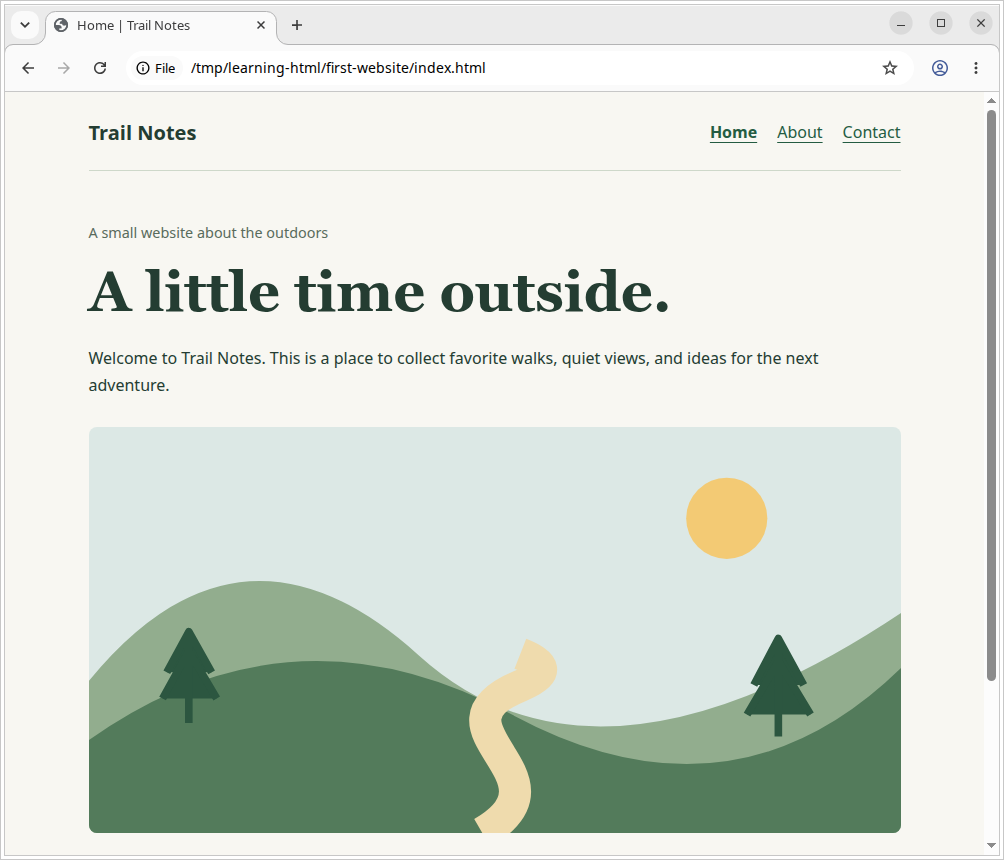
- Look for A little time outside. above an illustration of a winding trail. The address bar shows File and a path ending in
first-website/index.html. Click About to open the second page, Small walks. Good stories. Use Chrome’s back arrow to return.
See the HTML and check a saved change
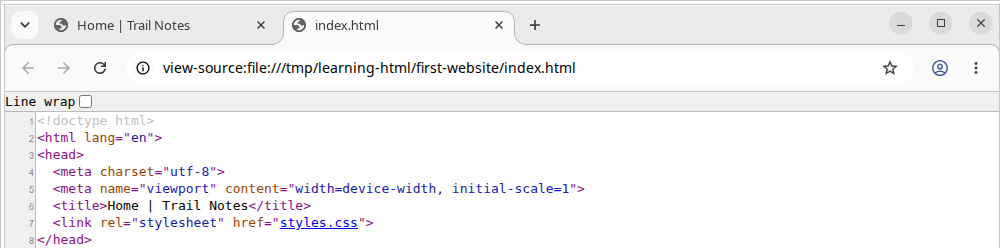
To read the tags behind the page, press Ctrl+U on Windows or Linux, or Command+Option+U on a Mac. Chrome opens a second tab whose address starts with view-source:. In the sample, the line containing href="styles.css" tells Chrome which stylesheet to load. Chrome keyboard shortcuts
To change the heading, open the same index.html in a text editor such as Phoenix Code. Find <h1>A little time outside.</h1>, change the words between the tags to My weekend walks., and save the file. Return to the Home | Trail Notes tab and click Reload, the circular arrow beside the address bar. The new heading should appear.
Why do I see tags or a missing image?
- The entire tab shows HTML tags. If the address starts with
view-source:, switch back to the page tab. If the filename ends in.html.txt, Chrome is opening a text file. Save the HTML as plain text namedindex.htmlin your editor, then open that file in Chrome. - The heading appears, but the page looks plain or the trail is missing. Check that you extracted the whole ZIP. For this sample,
styles.cssbelongs besideindex.html, andtrail.svgbelongs insideimages.
Can I preview just one HTML file online?
Yes. Open the Phoenix HTML Viewer, click Open .html file, and select your file. If you see Source and Preview tabs, select Preview. The Viewer reads the chosen document. With the Trail Notes sample, it shows the heading, while the separate stylesheet and illustration stay in your project folder. To see the complete sample, open the local index.html directly in Chrome. Troubleshoot missing CSS, images, or JavaScript in the Viewer