How to Compare Two JSON Files and Read the Differences

Did a setting change, or did someone just rearrange the file? Open the old version in Original JSON and the new version in Changed JSON, then click Compare JSON. Phoenix Code compares the values and shows the location of each difference. Spaces, indentation, and the order of keys in an object can change without showing up as edits.
You can use your own two files or paste the examples below. The free JSON Compare & Diff tool runs in your browser.
Compare the old and new settings
Open JSON Compare & Diff. If you have your own files, click Open file in Original JSON and choose the older file. Then use Open file in Changed JSON to choose the newer one.
To try it with Trail Notes, paste the first block into Original JSON and the second into Changed JSON.
Original JSON
{
  "project": "Trail Notes",
  "published": false,
  "pages": ["home", "walks"],
  "theme": {"color": "green", "logo": "trail.svg"}
}
Changed JSON
{
  "theme": {"color": "green", "accent": "amber"},
  "pages": ["home", "walks", "map"],
  "published": true,
  "project": "Trail Notes"
}
Read what changed
Click Compare JSON. For Trail Notes, the message reads Compared: 4 differences found. The toolbar shows 2 added · 1 removed · 1 changed.
Use the up and down arrows beside the difference count to move through the results. Each stop gives you a path. For example, /pages/2 means the third item in pages, because array positions start at zero.
| Path | What happened in Trail Notes |
|---|---|
/published | The existing setting changed from false to true. |
/pages/2 | "map" was added after "walks". |
/theme/logo | The logo field and its value "trail.svg" were removed. |
/theme/accent | A new accent field was added with the value "amber". |
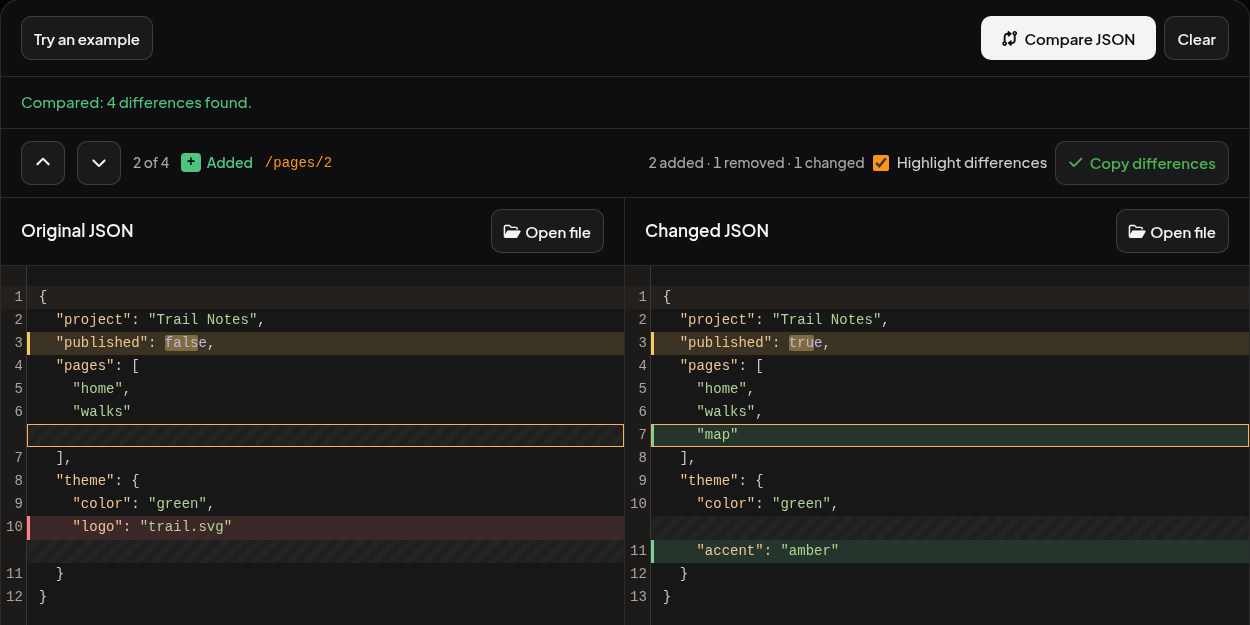
Click Copy differences to keep a text report. It uses + for an addition, - for a removal, and ~ for a changed value. If an addition shows up as a removal, check which version you opened in Original JSON.
Why moving a key is different from moving an array item
The project key appears first in the original and last in the changed file. Its value is still "Trail Notes", so it has no entry in the report. An object identifies each value by its key.
An array identifies items by position. To see this, replace the original pane with {"pages":["home","walks"]} and the changed pane with {"pages":["walks","home"]}. Click Compare JSON again. You’ll get 2 changed. Position /pages/0 now holds "walks", and /pages/1 now holds "home".
To apply a change, open the source file in your editor, edit that setting, and save. Then open the saved version in Changed JSON and compare again. If you’re editing a project configuration in Phoenix Code, see JSON editing and error checks.