Phoenix Code 5.5.11: Layers, Visual AI & ChatGPT Codex






Phoenix Code 5.5.11 is now available at phcode.dev.
See and edit your HTML with the new Layers panel, try AI design ideas on your page, explore interactive replies in chat, and bring your existing CLI agents into Phoenix Code. There’s also simpler AI setup, AI demos, usage graphs, thinking effort, and photo search.
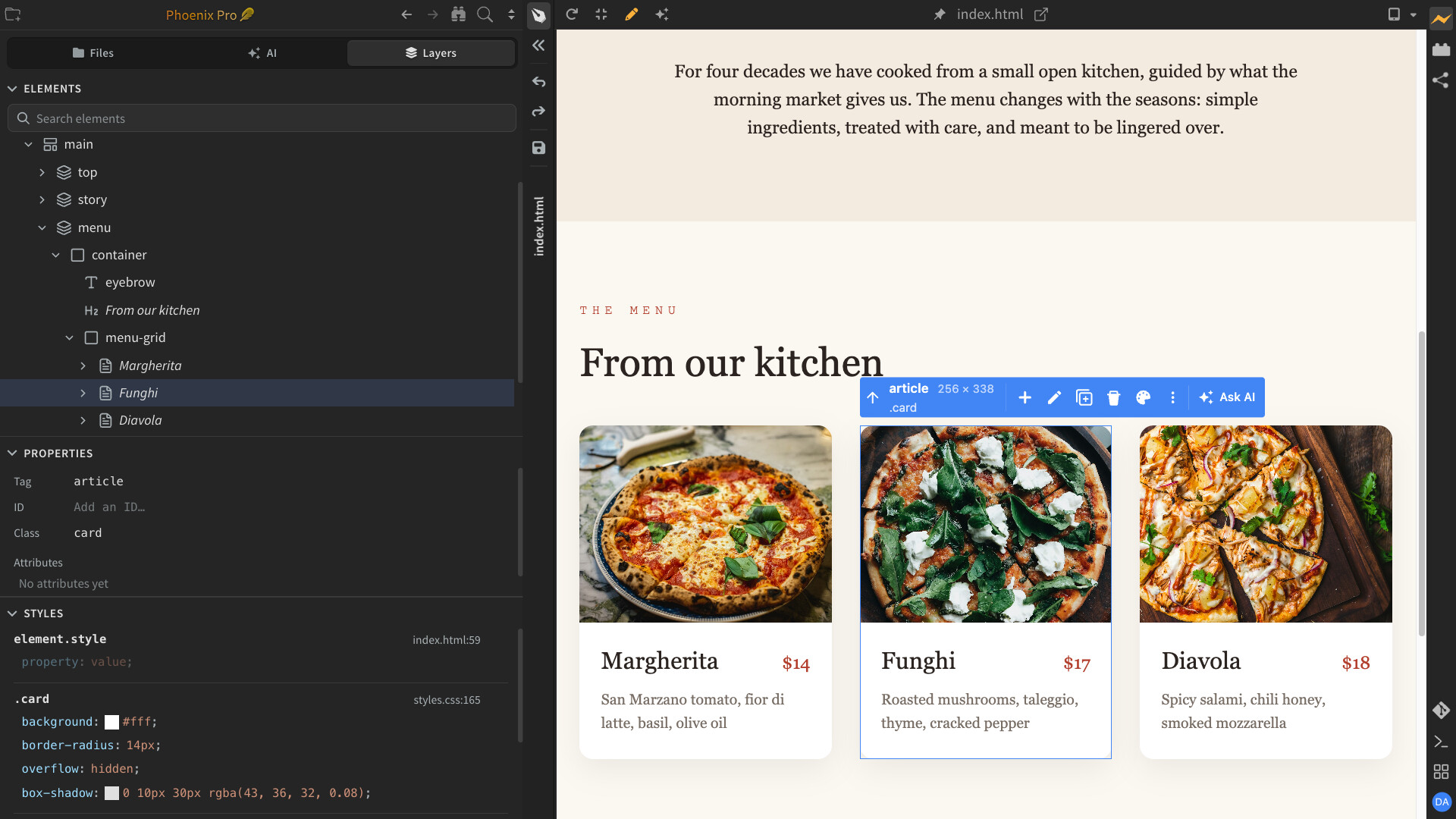
Explore and Edit Your Page with Layers
Edit your web pages visually, without touching code! The new Layers sidebar lets you explore your page’s HTML structure, add, move, duplicate, or delete elements, and edit their properties.
Change colors, fonts, sizes, and spacing with simple visual controls. Every change is instantly reflected in your code and Live Preview.
The Layers panel is a Phoenix Pro feature.
Ask AI in Live Preview
Just point and ask AI, instead of explaining what you want to change! Select any part of your page in Live Preview and ask AI to make changes. No need to describe where or what you're referring to.
Ask AI to suggest alternative designs, explore color schemes, or try different fonts.
Ask AI also works with custom server previews, including PHP and other server-rendered pages, as well as selected code or Markdown text.
Available only in desktop apps.

Intelligent UI in AI Chat
See what AI means, instead of just reading about it! Phoenix AI can now show interactive designs, buttons, cards, layouts, and more directly in chat.
Explore different styles, click through options, and adjust controls right in the conversation. Instead of just describing an idea, AI can show you how it looks and works—all without opening Live Preview or writing code.
This feature is available only in desktop apps.

Bring Your Claude Code & Codex CLI to Phoenix Code
Supercharge your existing CLI agents with rich, interactive visual workflows! Use your existing Claude Code or Codex subscriptions in Phoenix Code to explore designs in Live Preview, try interactive options, and make changes visually instead of relying on text descriptions.
Run multiple CLI sessions, switch between them easily, and send Ask AI requests directly to your agents. Track your AI consumption with the built-in AI Usage Meter (see below).
Running CLI agents inside Phoenix Code is a Phoenix Pro feature, available only in desktop apps.

Track Your AI Usage
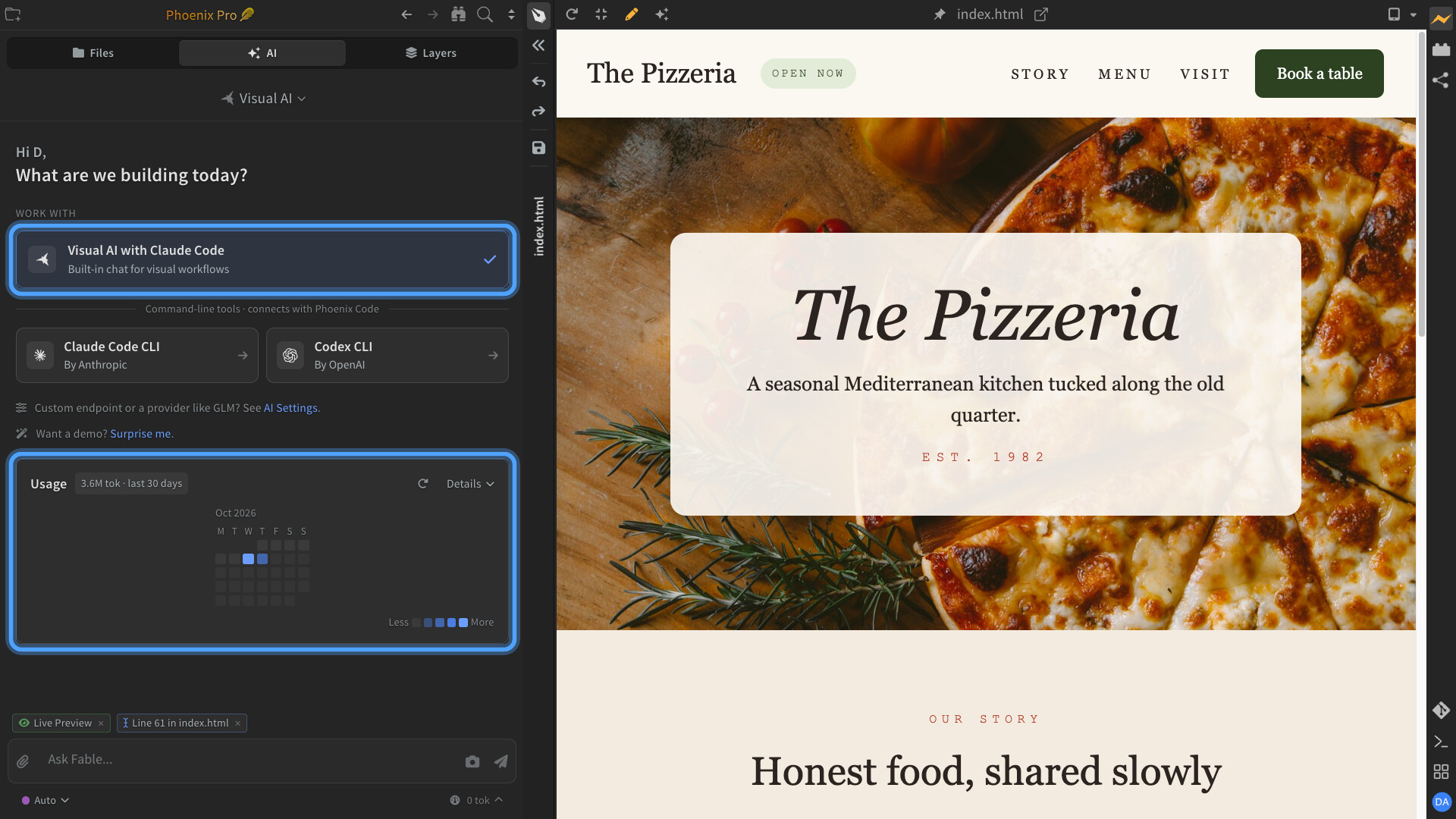
See how much AI you're using, all in one place! Track token usage and estimated costs across Phoenix AI, Claude Code, and Codex CLI sessions.
Explore daily usage graphs, monthly trends, and breakdowns by AI model. You can also clear your usage history without deleting your chats.
Costs are estimated using API list prices and may differ from your actual provider charges. Available only in desktop apps.

Easier AI Setup & Quick Access
Get started with your favorite AI tools more easily! The new AI start screen brings Phoenix AI, ChatGPT Codex, and Claude Code CLI together in one place.
Quickly set up your AI tools, switch running sessions, and pick up right where you left off.
AI Demos
See what you can create with Phoenix AI before signing in or using any AI credits. Watch a page take shape, explore the result, and reveal the prompt behind it. Click Surprise Me to try it.
This feature is available only in desktop apps.
Adjust AI Thinking Effort
Choose how much effort AI puts into solving your problems! Use lower thinking effort for quick, simple tasks or higher effort for complex problems that need deeper reasoning.
Select your preferred Thinking Effort for supported AI models, or leave it at Default to use the model's standard setting.
This feature is available only in desktop apps.

Discover Stock Photos with AI
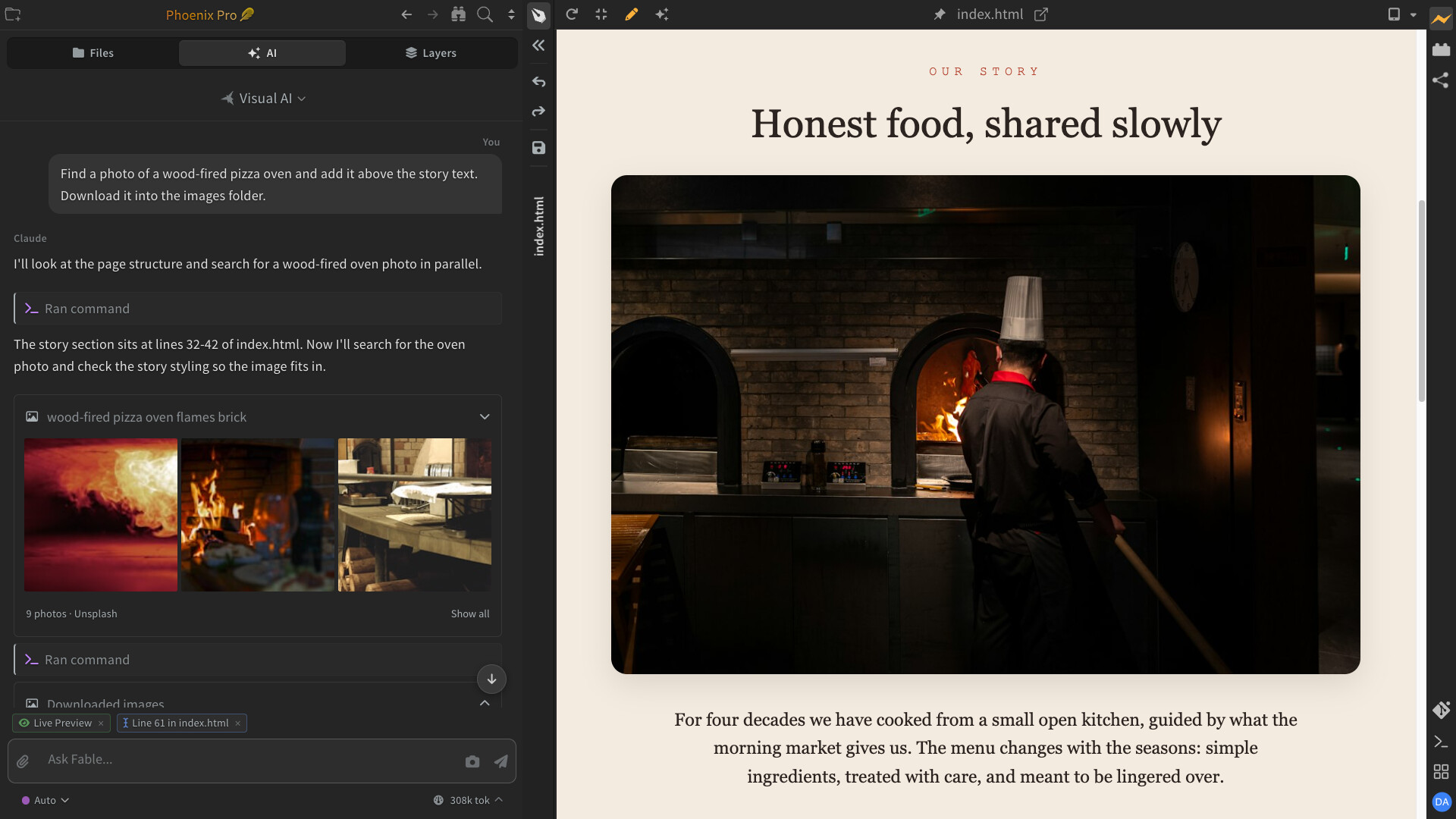
Find the perfect photos for your website with the help of AI! Explore real stock photos, discover new ideas, and let AI help you narrow down your choices to find images that fit your design.
Ask AI to add your favorite photos directly to your page or download them into your project.
This feature is available only in desktop apps.
Larger Image Previews in Markdown
Take a closer look at images without leaving your Markdown document! Open images in a larger view to see details more clearly, whether you're reading or editing.
Simply click an image in reader mode, or double-click it while editing. Press Escape to return to your document.
Terminal and Git improvements
- Name your terminals. Rename terminal tabs so you can tell your development server, build, and shell apart.
- Keep your bearings after a project switch. A notice lets you keep existing terminals running or restart them in the new project's folder, with confirmation when active processes would be stopped.
- Open terminal links. Applications that print clickable terminal hyperlinks can now open them in your default browser.
- See what has been pushed. Git history marks the last pushed commit and identifies the local commits above it. Branches that have not been pushed get a clear indication too.
- Open projects without Git interruptions. Projects without a repository no longer trigger a “getting remotes” error dialog.
Notable fixes and performance improvements
- Fixed a race where a delayed file reload could overwrite text typed or saved while the reload was in progress. (Change)
- Fixed stale Markdown preview updates reverting newer edits made in the code editor. (Change)
- Live Preview reconnects after a dropped connection, and incomplete HTML is handled more reliably while you type. (Reconnect, HTML editing)
- Reduced repeated CSS parsing, page measurements, and tree rebuilding during selection and editing in Live Preview and Layers.
- Fixed JavaScript hints getting stuck while indexing HTML or PHP, and older project preferences arriving after a project switch. (Hints, Preferences)
- Python and PHP language-server setup now limits automatic retries and keeps error details and a manual retry available in the task list. Python tooling also updates to Pyrefly 1.2.0 and Ruff 0.16.5. (Setup, Tooling)
- Fixed the sidebar resize handle being left over the editor after the sidebar was collapsed. (Change)
- Dropping several files now leaves the last file in the drop order active, regardless of which one loads fastest. (Change)
- Notifications stay open while you hover over them, giving you time to read or use their actions. (Change)
- AI plan review now handles approval, revision, cancellation, and stopping more consistently. Chat also resumes following new messages after you have scrolled back to read older replies.
Platform and account notes
- Windows: Fixed AI multiline edits being rejected when the file and the AI used different line endings. Language-server quick fixes also handle drive-letter capitalization correctly.
- macOS: Improved semibold and bold text rendering in the interface.
- Managed desktop installations: Administrators can point the updater at a custom update manifest, including a custom Linux installer URL.
- Accounts: Desktop sign-in refreshes Pro access immediately, and existing subscribers no longer receive prompts to buy Pro again.
Get the update at phcode.dev, and let us know what you build in GitHub Discussions.