How to Convert Markdown to PDF with Page Breaks

To convert a Markdown file to PDF, open it in the Phoenix Code Markdown to PDF Converter, choose Save as PDF, then save from your browser’s print dialog. If you want a section to start on a new page, you can mark that spot in the Markdown.
Try it with a short project README. The finished handout has a file table and a CSS example on page one, followed by a checklist on page two. You can do this in a browser without installing an editor or extension.
Open the README and check the preview
- Save the example Markdown file, or use a
.mdfile of your own. - Open the converter, click Open file, and select your file. If you already have the text on your clipboard, paste it into Markdown source.
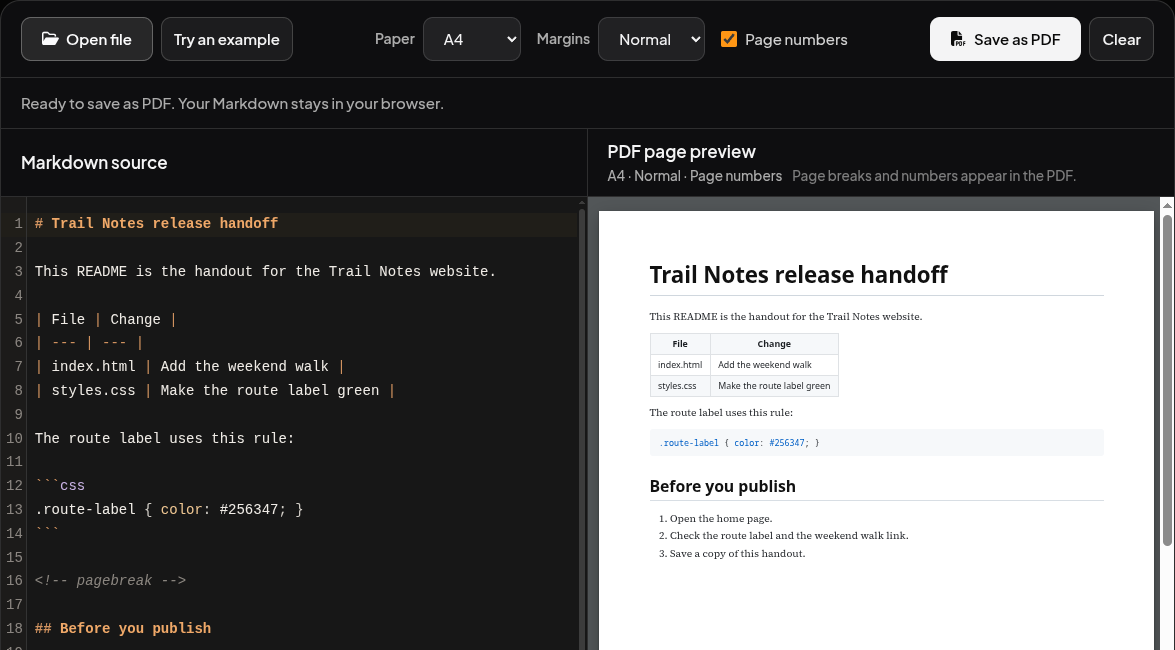
- Under PDF page preview, look for the heading Trail Notes release handoff, a two-row table, and the CSS rule for
.route-label. On a narrow screen, tap Preview to switch from the source to the rendered page.
Start the checklist on a new page
The sample already contains a page break. For your own README, place <!-- pagebreak --> on a line by itself just before the heading you want on the next page. Leave a blank line above and below the marker. Put it outside any fenced code block so the converter reads it as an instruction.
<!-- pagebreak -->

## Before you publish

1. Open the home page.
2. Check the route label and the weekend walk link.
3. Save a copy of this handout.
In the converter preview, Before you publish still appears just below the CSS example. The print dialog shows where one sheet ends and the next begins.
Save and check the two-page PDF
- In the converter toolbar, set Paper to A4 and Margins to Normal to match the example. For US Letter paper, choose Letter. If your browser shows Page numbers, turn it on to number the sheets.
- Click Save as PDF in the converter. In Chrome’s print dialog, choose Save as PDF under Destination. For the sample, check that the print preview shows two pages.
- Click Save, pick a folder, and name the file
trail-notes.pdf. Open the saved PDF. On page one, search for#256347or select the CSS rule with your mouse. Page two should begin with Before you publish.
You can check your result against the PDF saved from the example. If the checklist stayed on page one, look for a code block above the marker that still needs its closing three backticks. If your PDF includes the converter’s toolbar, use the converter’s Save as PDF button to print the document.
If you want to keep editing the README in Phoenix Code, open the original .md file there. Editing Markdown with Live Preview.