How to Change All Caps to Sentence Case on a Website

You change a heading to “Meet at the NASA exhibit,” save the file, and the page still shows MEET AT THE NASA EXHIBIT. Open the HTML and look between the heading tags. If the words are uppercase there, edit the text. If they already look right there, check the CSS.
When the letters in the file are all capitals
-
Open the Phoenix Case Converter. Paste this example into Your text.
MEET AT THE NASA EXHIBIT. BRING A MAP. -
Under For writing, click Sentence case. The result is Meet at the NASA exhibit. Bring a map. If you choose lowercase instead, you get meet at the nasa exhibit. bring a map. That choice also changes the acronym.
-
Read through names, initials, and brand spellings before copying. Click Copy, replace only the words between the heading’s opening and closing tags, and save your HTML file. For example, the first sentence could become
<h1>Meet at the NASA exhibit</h1>.
When the HTML looks right but the page is still uppercase
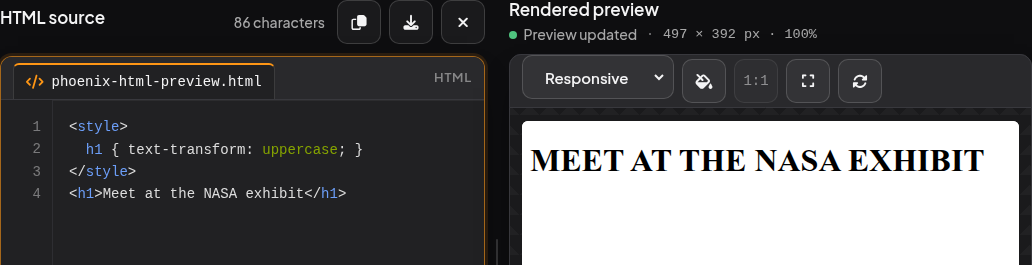
Paste this example into HTML source in the Phoenix HTML Viewer. Choose Preview if the source and preview appear as tabs.
<style>
  h1 { text-transform: uppercase; }
</style>
<h1>Meet at the NASA exhibit</h1>
The heading in the preview reads MEET AT THE NASA EXHIBIT. The letters between the <h1> tags still have their original spelling.
Change text-transform: uppercase; to text-transform: none;. The preview now reads Meet at the NASA exhibit. The none value lets the text display as you typed it, including the capitals in NASA. CSS text-transform
On your own site, look for text-transform in the stylesheet that applies to the heading. If the file contains several matches, check the selector before editing. The example’s h1 rule affects every first-level heading. To change only this one, give it a class such as exhibit-title and add .exhibit-title { text-transform: none; } to the stylesheet. Save, reload the page, and check another heading as well. Find text across project files in Phoenix Code