Convert a Word document to Markdown and check the headings and table

Pandoc can turn a Word document into a Markdown file you can use in a GitHub README. One command creates the file. Opening it in a preview lets you check that your headings and table cells survived.
Try it with a walk plan. One meeting point is Gate A | East car park. Markdown uses that same vertical bar to separate table cells, so that address gives you an easy way to check your result.
Convert the Word file with Pandoc
- Download the practice Word document, or use a
.docxof your own. Open it and note the headings and the two rows of walk details. - Install Pandoc for your operating system. Open a new Terminal or PowerShell window and run
pandoc --version. You should see a version number. Pandoc installation instructions. - Change to the folder where you saved the Word file. For example, if you saved it in Downloads and your terminal starts in your home folder, run
cd Downloads. For a different location, typecd, a space, and the full folder path in double quotes. - Run the command below. It writes
weekend-walk-plan.mdbeside the Word file. Thegfmsetting selects GitHub Flavored Markdown, which supports tables. For your own file, change both filenames and choose a new output name if you already have a Markdown copy you want to keep.
pandoc "weekend-walk-plan.docx" -f docx -t gfm -o "weekend-walk-plan.md"
Open the saved Markdown and check the table
Open the Phoenix Code Markdown Viewer. Choose Open file and select weekend-walk-plan.md from the same folder. On a narrow screen, tap Preview to see the formatted document.
- Headings. The source begins with
# Saturday walks. The two hashes in## Meeting pointsput it one level below Saturday walks. - Meeting time. The source reads
**9 am**. The preview shows 9 am in bold. - Table. Look for three columns. The 4 km Woodland loop meets at Gate A | East car park, all in one cell. The 12 km River path meets at Footbridge. In the source,
\|keeps the bar inside the address.
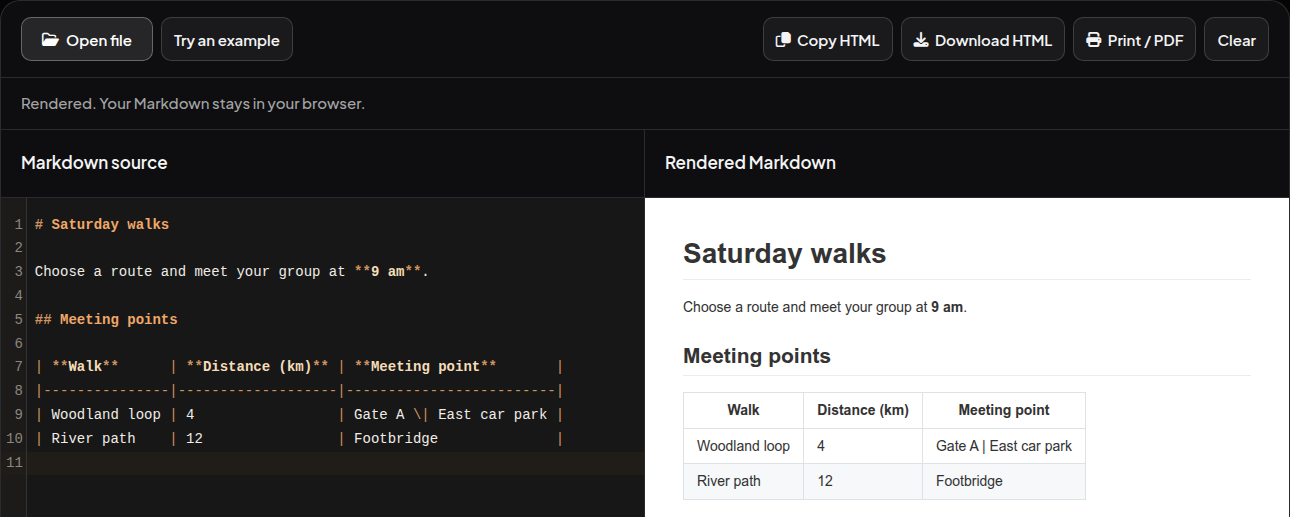
If the end of an address disappears from a cell, open the .md in a text editor, put a backslash before the bar inside the address, and save. Open the saved file again in the viewer. You can compare it with the Markdown file produced from the example. For more on alignment and separators, see Make a Markdown table with aligned columns.
Restore the Word title if your README needs it
In the Word document, Weekend walk plan uses the built-in Title style. Pandoc reads it as document metadata, so the command above leaves it out of the Markdown body.
To include the title, open the saved .md in a text editor. Insert # Weekend walk plan at the top, followed by a blank line. Change # Saturday walks to ## Saturday walks and ## Meeting points to ### Meeting points. Save and reopen the file in the viewer. The title should now sit above both sections, with the route details still in their original cells.