Link to another page
Make a Contact me link on your home page that opens a separate Contact page. You'll also check that visitors can get back to Home.
This guide works in Community (free) and Phoenix Pro.
1. Open the practice website
If you followed Add an image to your website, keep that project open.
Otherwise, download the practice website, extract it, and use Open Folder in Phoenix Code to open the extracted first-website folder.
Look in the file list on the left. You should see these three pages:
index.html— the home page.about.html— the About page.contact.html— the Contact page.
2. Find the link you'll change
- Click
index.htmlin the file list. - Click the lightning bolt to open Live Preview.
- Scroll below the picture. Find Read about this project →.
You'll turn that link into Contact me and make it open contact.html.
3. Change the link
Choose your edition. Both methods change the same link.
- Phoenix Pro
- Community (free)
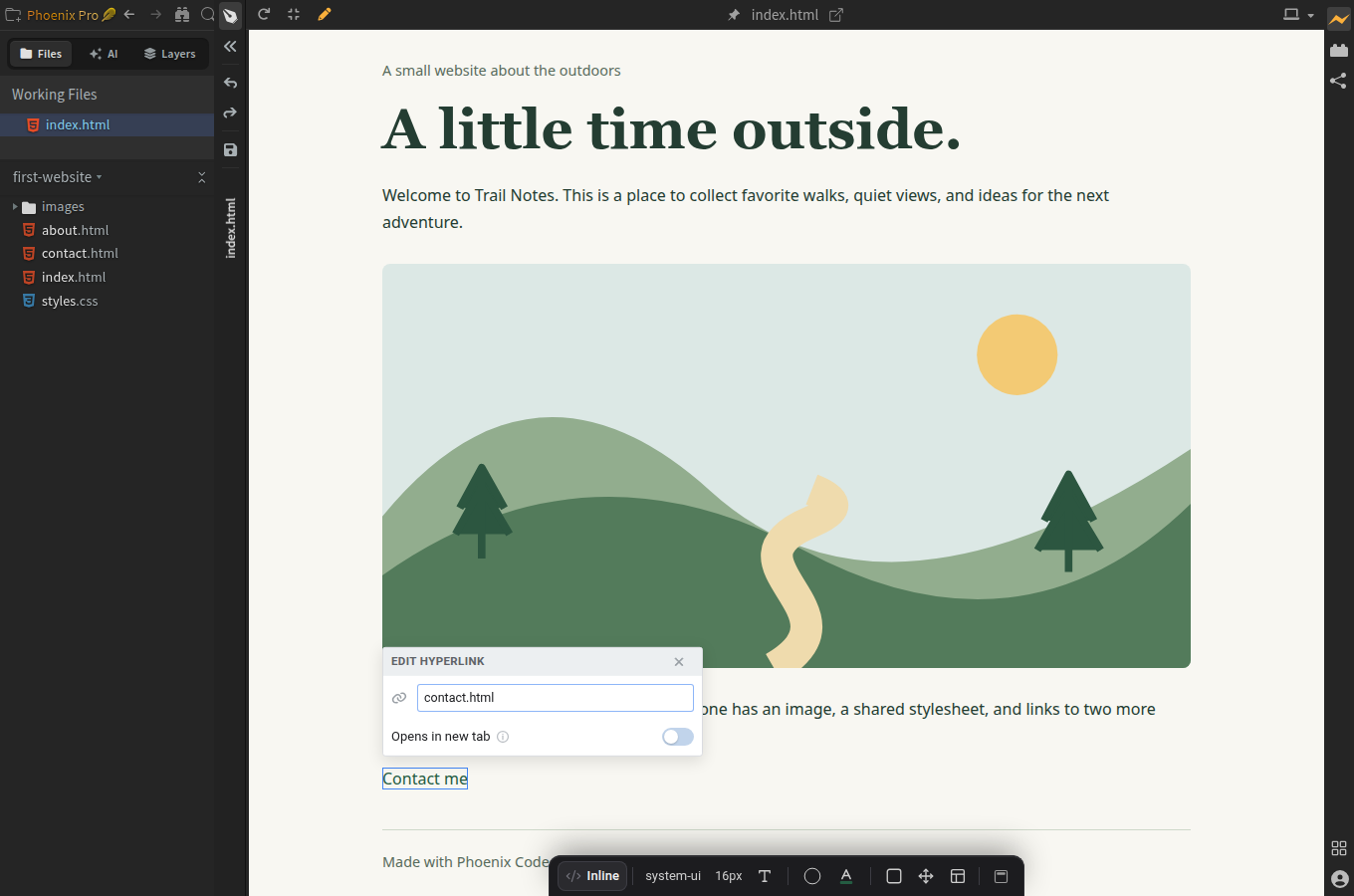
- Click the maximize icon in the Live Preview toolbar to enter Design Mode. If the editor is already hidden, keep this view.
- If the pen button in the preview toolbar is gray, click it to turn on Edit Mode. An orange pen means visual editing is on.
- Double-click Read about this project →.
- Replace the words with
Contact meand press Enter. - Click the link once to select it.
- Click the chain icon in its floating toolbar to open Edit Hyperlink.
- Enter
contact.htmlin the URL field and press Enter. - Click the floppy-disk icon in the narrow toolbar to the left of the preview. Its tooltip says Save File.
Design Mode gives the preview more room; Edit Mode enables visual changes. Phoenix Code updates the HTML for you, and you can save without leaving Design Mode.
- Keep
index.htmlopen in the code editor. If the preview fills the app, click its restore icon to show the editor again. - In the Live Preview toolbar, click the small down arrow beside the pen and choose Highlight Mode.
- Click the paragraph beginning Every website starts with a first page, just above the link. The editor moves to that paragraph's
<p>tag. - Look at the next line in the code:
<a href="about.html">Read about this project →</a>. - Drag to select that entire
<a ...>...</a>line, then paste:
<a href="contact.html">Contact me</a>
- Save with Ctrl+S or Cmd+S.
Contact me is what the visitor sees. contact.html is the page that opens when they click it.
We use the nearby paragraph to find the code because clicking the link in Highlight Mode can open its destination.
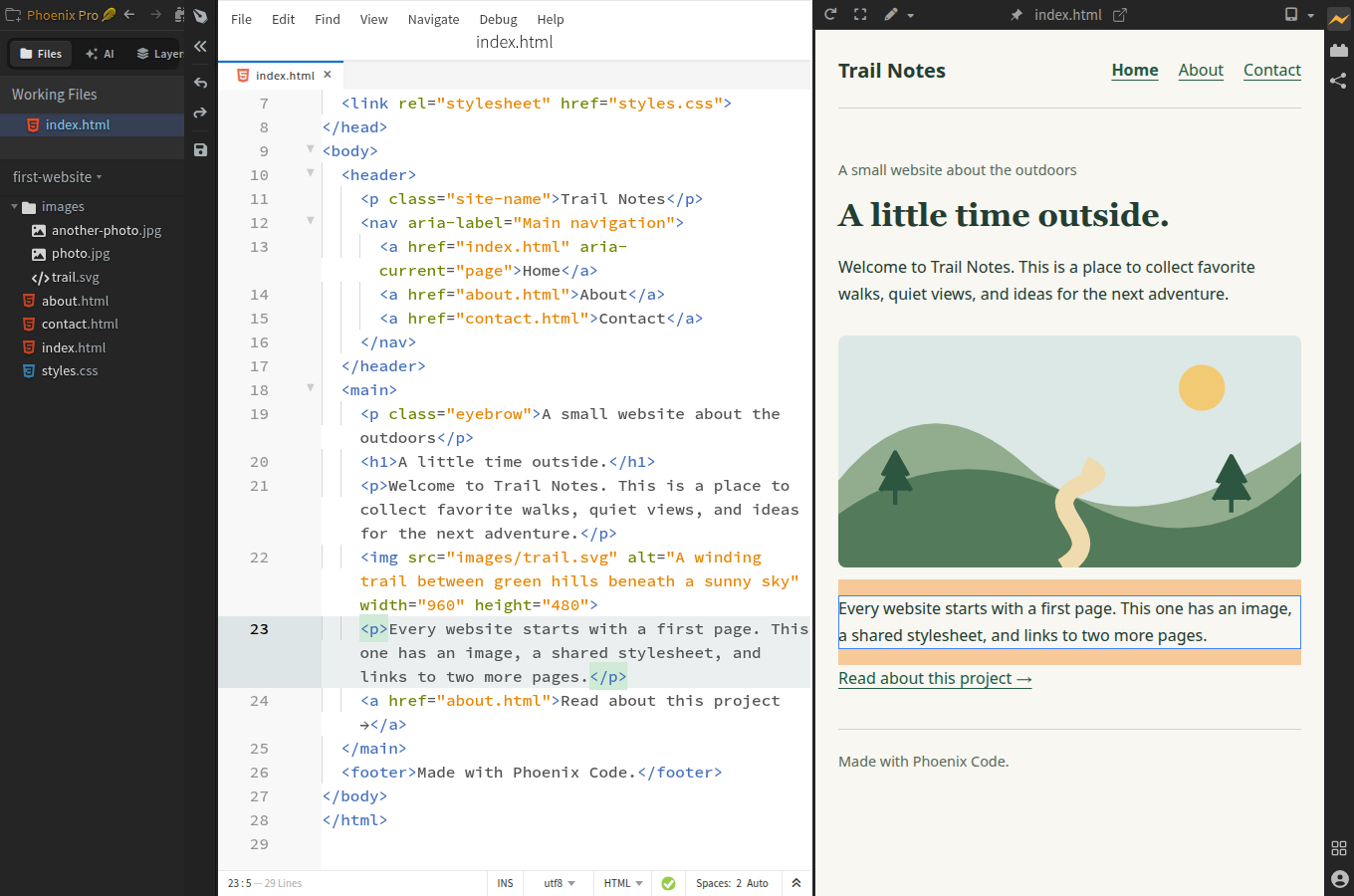
Click the screenshot to view it full size. It uses the original practice page; your picture may look different if you followed the image guide first.
You should now see “Contact me” below the picture.
4. Test the link
- Click Pop Out to New Window in the Live Preview toolbar.
- In the new browser window, click Contact me.
- Check that the Contact page opens. Its heading is Keep in touch.
- Click Home in the navigation at the top.
You should return to the home page. Your link works in both directions because the Contact page already includes a Home link.
Use the separate browser window to check how a visitor will use the page.
5. Try one more change
Change the link to open the About page instead. Use about.html as the destination and About me as the text. Save and test it again.
When you're ready, share your website.
Need help?
I can't find the link in the code
Open index.html, press Ctrl+F on Windows/Linux or Cmd+F on macOS, and search for Read about this project. If you've already changed the words, search for Contact me instead.
If the preview fills Phoenix Code, click the restore icon in its toolbar to show the editor again.
The link says “file not found”
Check that contact.html is saved beside index.html in the same folder. The link must use its exact filename, including .html and matching capital letters.
If you put the Contact page in a folder named pages, use pages/contact.html instead. To return from that folder to the home page, use ../index.html.
How do I add a new link to my own page?
Community: keep your HTML file open and use Highlight Mode to click a paragraph near where you want the link. In the editor, click after that paragraph's closing </p> and press Enter. Paste <a href="contact.html">Contact me</a> on the new line, inside the page's <body>, then save.
Pro: select a nearby element in Edit Mode, click the plus icon, choose Before or After, then Link. Follow the text and destination steps above.
Save the destination page first. A link points to another file; it doesn't create that file for you.
How do I change the link color?
Community: open styles.css and change the color value inside the a { ... } rule.
Pro: select the link in Edit Mode and open the Styles Bar. Under Save changes to, choose the a rule in styles.css, then choose a text color.
All three practice pages use that stylesheet, so their links will share the change. Choosing an inline style in Pro changes only the selected link.