File Management
This section covers how Phoenix Code lets you manage, organize, and navigate files and folders within your projects.
File Tree
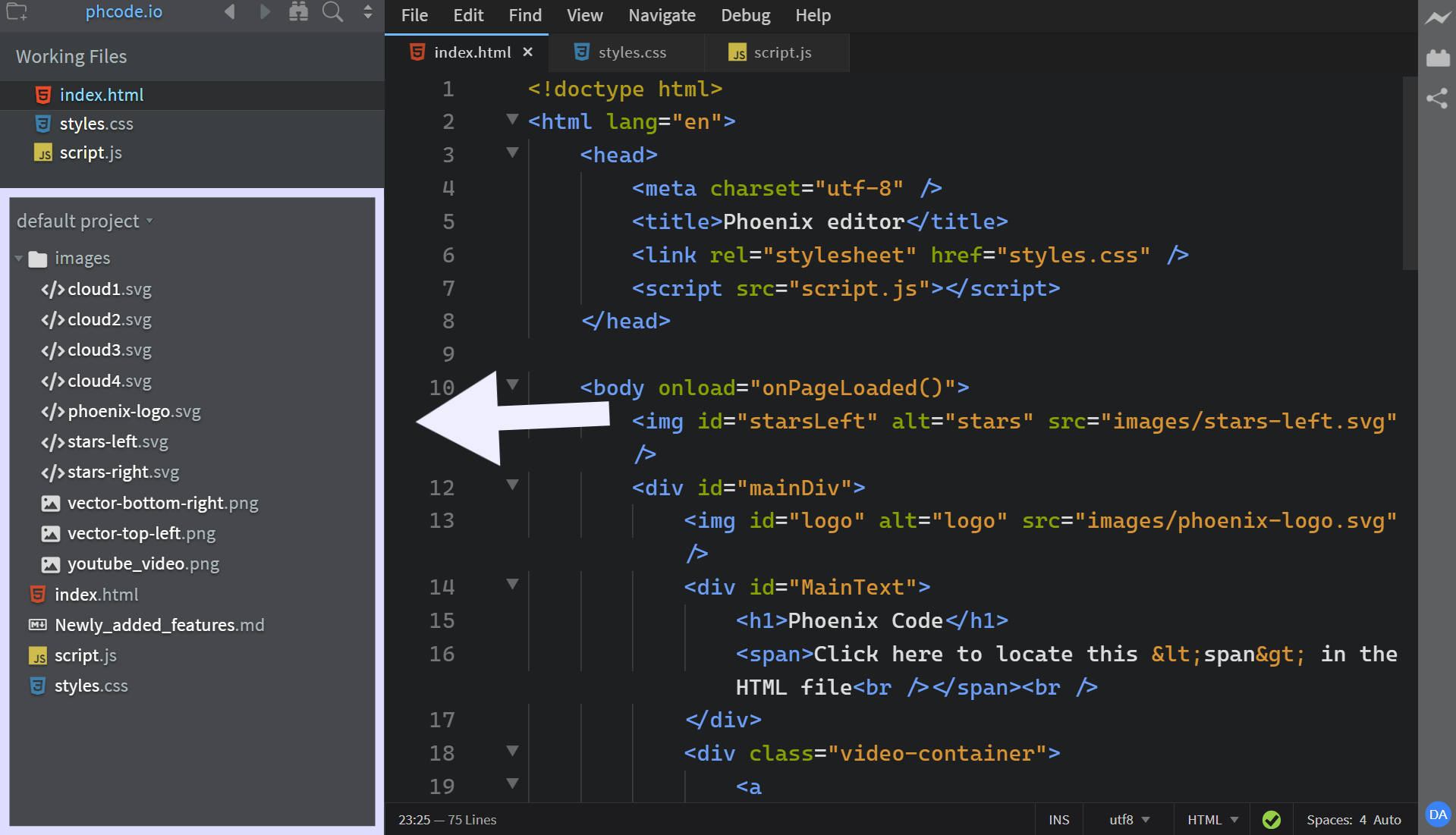
The File Tree appears in the sidebar and shows the complete folder structure of the open project. It lists all files and folders in a hierarchical view.
File Tree Context Menu
When you right-click within the File Tree, a context menu appears which allows you to perform various operations.
All file and folder operations, such as creating, renaming, deleting and many more are generally performed through this context menu.
The element you right-click in the File Tree becomes the selected context, meaning any operation performed will apply to that item. For example:
- Right-click a file → the action applies to that file.
- Right-click a folder → the action applies to or inside that folder (e.g., add file, create subfolder, delete contents).
- Right-click on empty space → the action applies to the project’s root directory.
In the image shown below,
index.htmlis selected as the context. Any action from the context menu will apply to that file.

You can also assign or update keyboard shortcuts for any File Tree action through the context menu using the keyboard button at the side.
See the Keyboard Shortcuts Guide for complete details.
Sorting Files and Folders
By default, the File Tree sorts folders first (in ascending order a-z), followed by files.
To sort folders and files together:
- Click the double-arrow at the top-right of the sidebar.
- In the dropdown, uncheck Sort Folders First.

Alternatively, you can control this behavior by updating the sortDirectoriesFirst property in the preferences file.
See Editing Preferences for details.
Now, files and folders are sorted together in one ascending list.
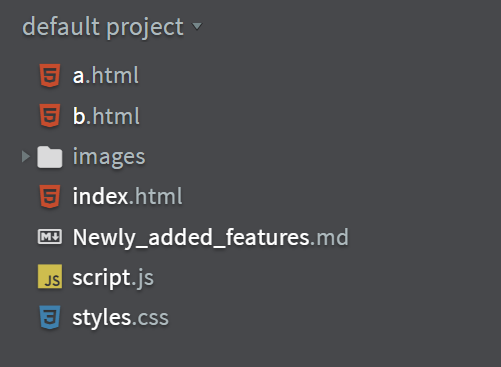
Notice how the
imagesfolder now appears in alphabetical order with other items.
Collapse All Folders
The Collapse All Folders feature helps you quickly reset your view by collapsing all expanded folders to their root level, leaving only the top-level items visible in the File Tree.
To collapse all folders:
- Hover over the File Tree header at the top-right.
- Click the
collapse icon(two arrows pointing toward each other) that appears.
Tab Bar
The Tab Bar appears at the top of the editor and displays all open files. Each file in the Tab Bar is referred to as a tab, and you can open as many tabs as you like. The Tab Bar helps you switch quickly between files while working.
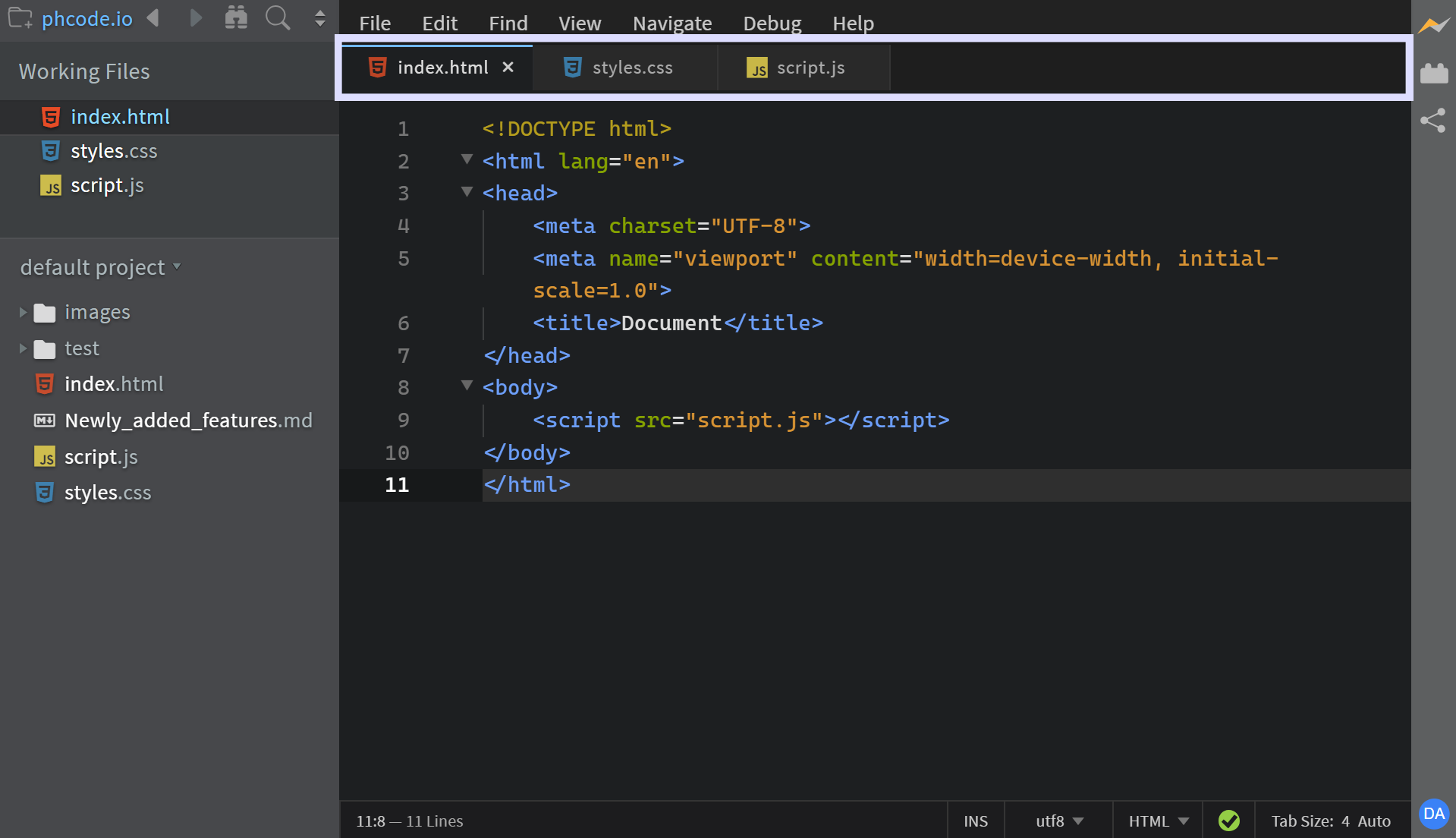
The active tab is highlighted with a blue marker to distinguish it from inactive ones. To switch between tabs, simply click the tab you want to view.
To close a tab, click the × button beside its name.
For inactive tabs, this button appears only when you hover over them.
Phoenix Code shows a small • icon on tabs that have unsaved changes.
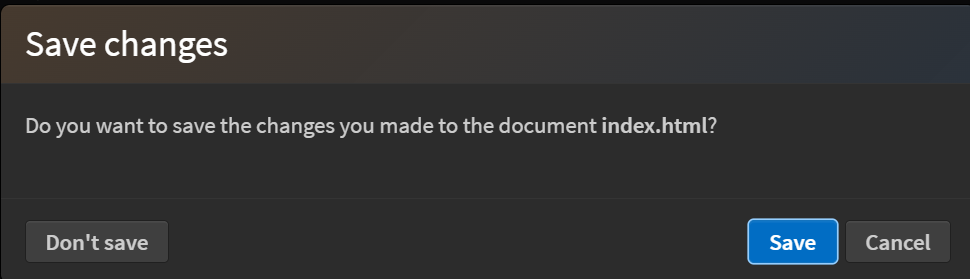
If you try to close a tab with unsaved changes, Phoenix Code displays a confirmation dialog with three options:
- Don't Save: Closes the tab without saving changes. All unsaved changes will be lost.
- Save: Saves the file and then closes the tab.
- Cancel: Keeps the tab open and returns you to editing.
When multiple tabs have the same filename, Phoenix Code displays their parent folder name so you can easily tell them apart.
Hovering over a tab will show a tooltip with its full path.
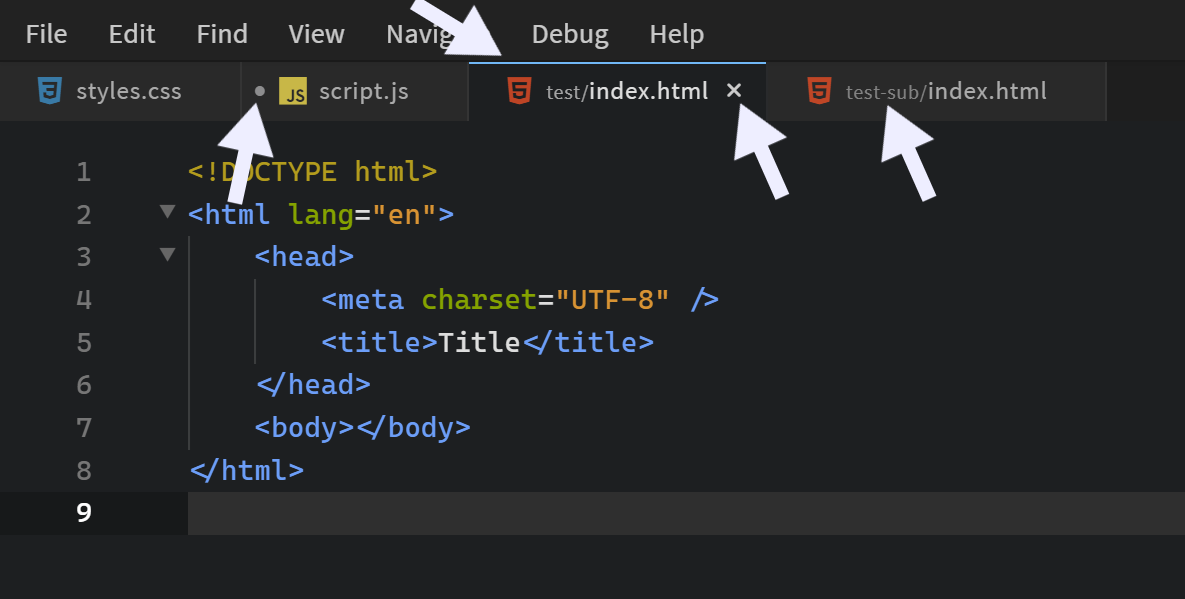
The image above shows various UI elements of a tab.
Preview Tabs
Preview Tabs are temporary tabs created when you single-click a file in the File Tree. They are useful for quick navigation without cluttering your workspace.
Preview Tabs are only visible in the Tab Bar and are not added to the Working Set. They appear in italic with a lighter gray text.
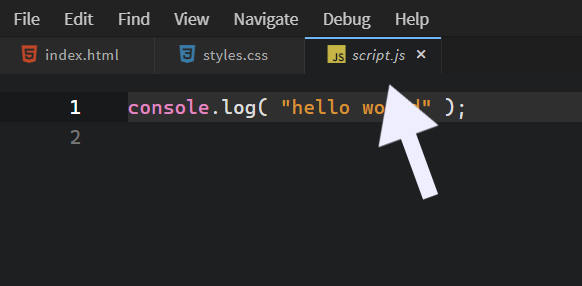
A preview tab becomes a permanent tab and is added to your Working Set when you:
- Make any change to the file
- Click the preview tab itself
- Save the file
- Double-click the file in the File Tree
Only one preview tab can exist per pane. Opening another file replaces the current preview tab, unless it has already been converted to a permanent tab.
Double-clicking a file skips the preview and opens it as a permanent tab immediately.
Tab Bar in Split Panes
When multiple panes are open, each pane has its own Tab Bar and maintains its own list of open tabs.
The active tab in the active pane is marked in blue, while the active tab in an inactive pane appears in gray.
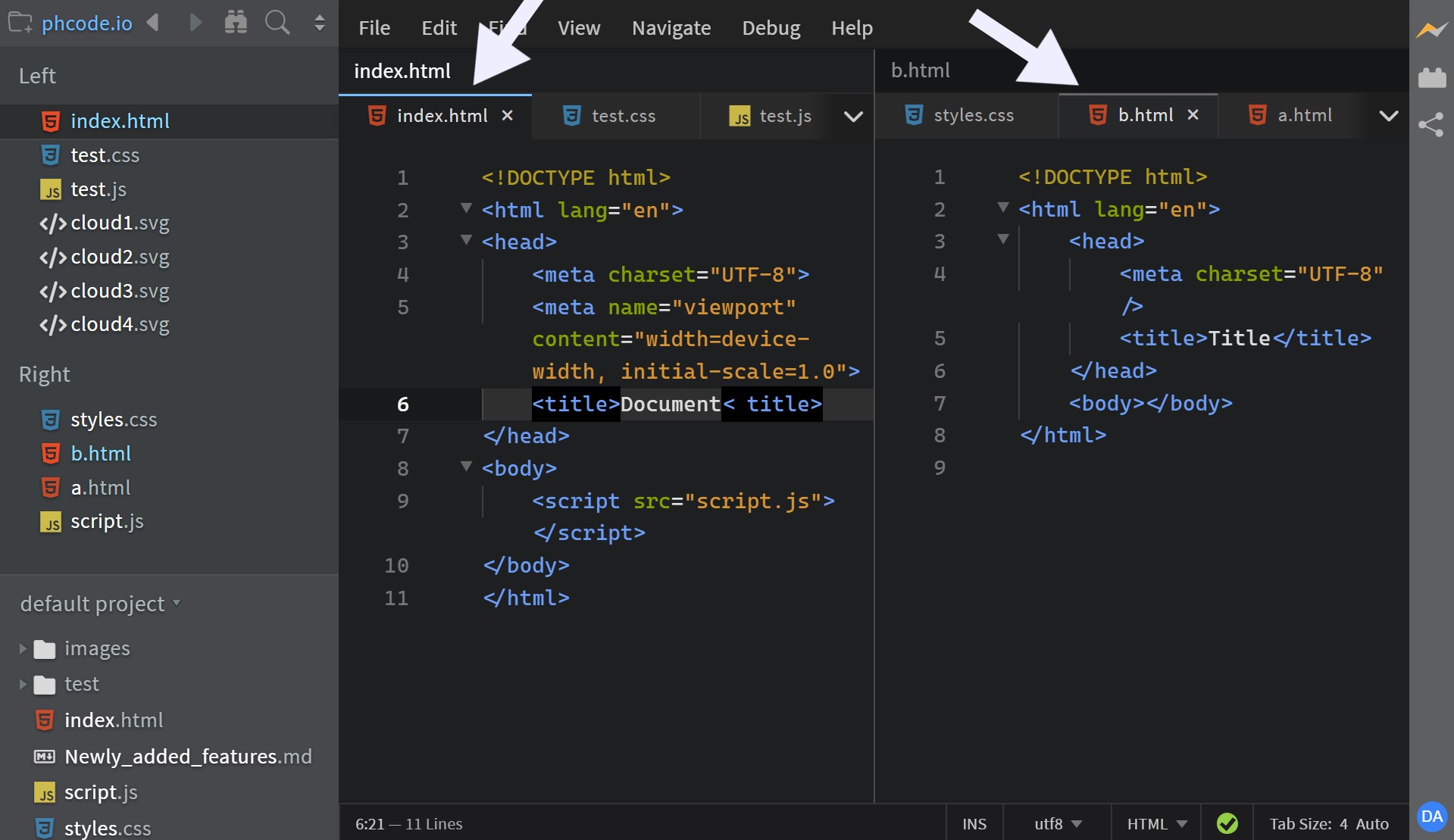
A file can appear as a tab in more than one pane.
Hidden Tabs
When you open a new file, its tab is added to the right of the existing tabs. If there are more tabs than can fit within the visible area, Phoenix Code displays a Show Hidden Tabs button.
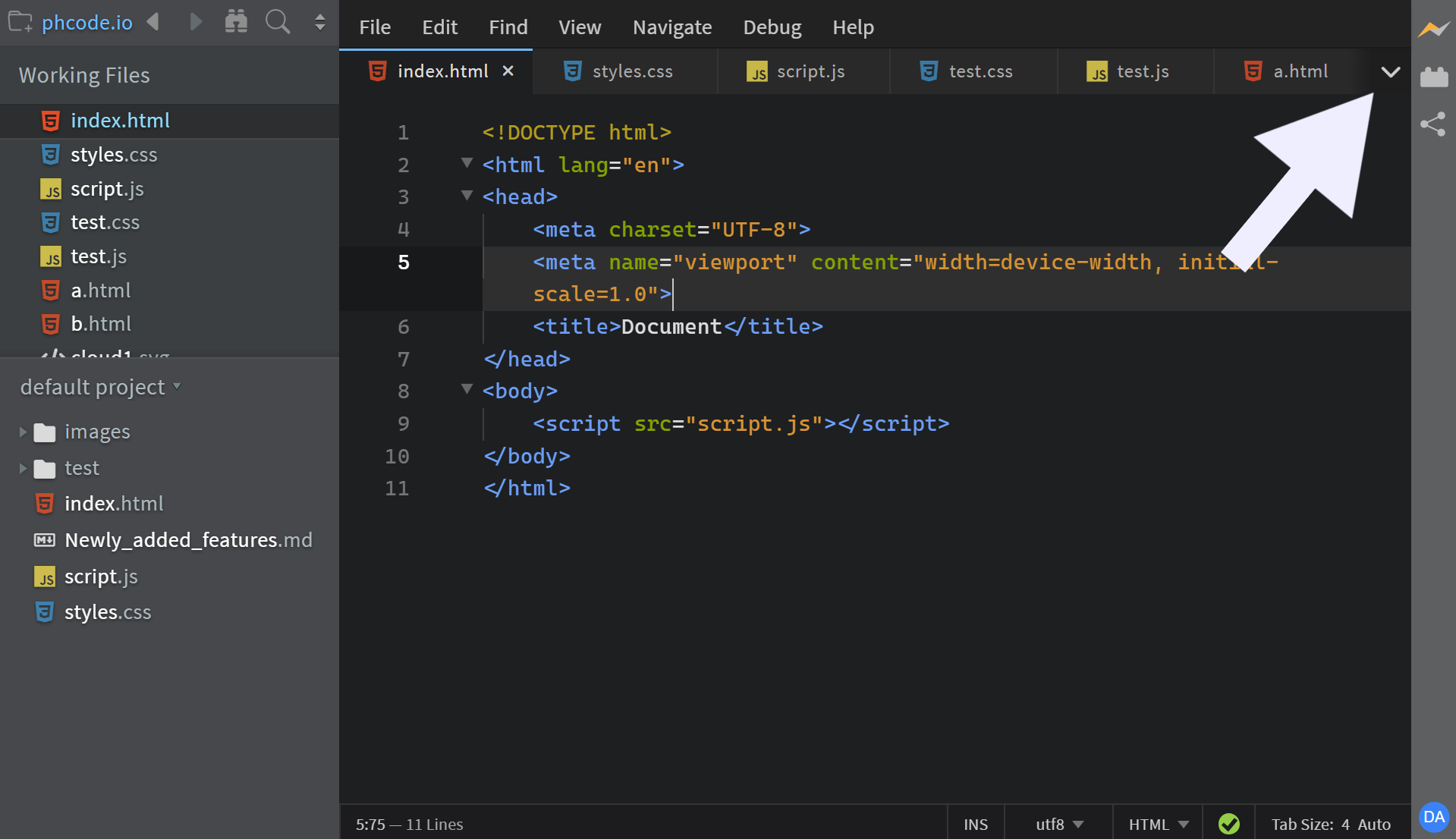
Clicking this button opens a dropdown list of all tabs that are not fully visible. From this list, you can select a tab to bring it into view or close tabs directly from the dropdown.
Drag-Drop Tabs
You can reorder tabs by dragging and dropping them. While dragging, Phoenix Code highlights the drop position with a vertical blue marker, showing exactly where the tab will be placed.
Tabs can also be dragged between panes.
Tab Bar Context Menu
When you right-click a tab, a context menu appears which has multiple options so that you can work with tabs easily.
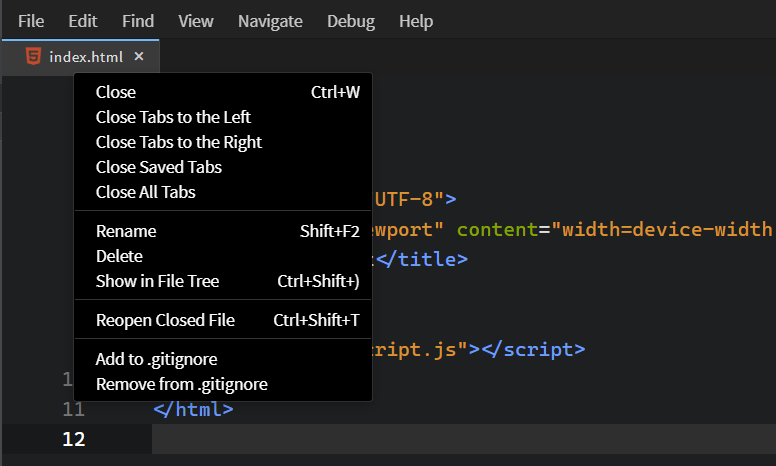
These options provide quick access to common file operations directly from the Tab Bar.
Git - Tab Bar
The Tab Bar displays Git file status indicators, showing which files are untracked or modified.
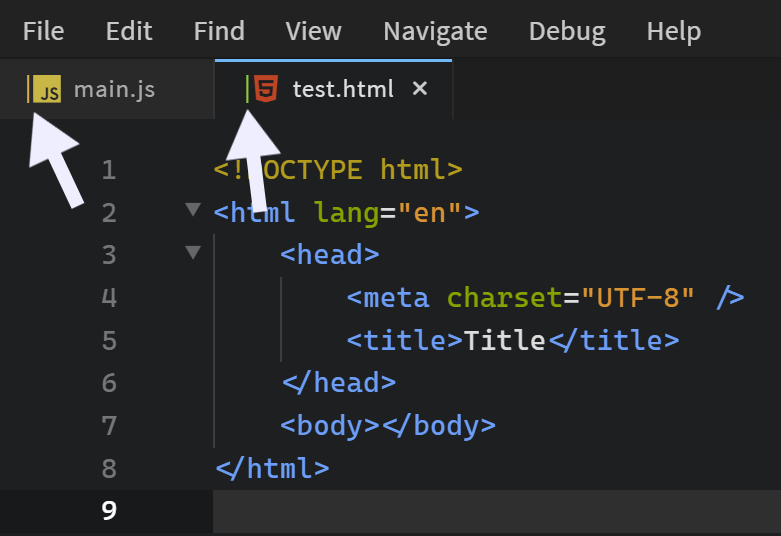
- A green marker indicates an untracked file.
- An orange marker indicates a modified file.
For files that are gitignored, Phoenix Code shows the tab name in gray italics.
These indicators appear only when your project is a Git repository.
Limiting the Number of Tabs
Phoenix Code allows you to control the maximum number of tabs displayed in the Tab Bar at once.
By default, the value is set to -1, which means all open tabs are displayed.
For example, if you want to show a maximum of 3 tabs in the Tab Bar, you can add the following to your preferences file:
"tabBar.options": {
    "numberOfTabs": 3,
    "showTabBar": true
}
You can set numberOfTabs to any positive number to define the maximum tab limit.
If you set it to 0, the Tab Bar will be hidden entirely.
Any negative value (such as -1) displays all open tabs without restriction.
The active tab is always visible, except when the
numberOfTabsvalue is set to0.
Showing or Hiding the Tab Bar
You can enable or disable the Tab Bar in several ways:
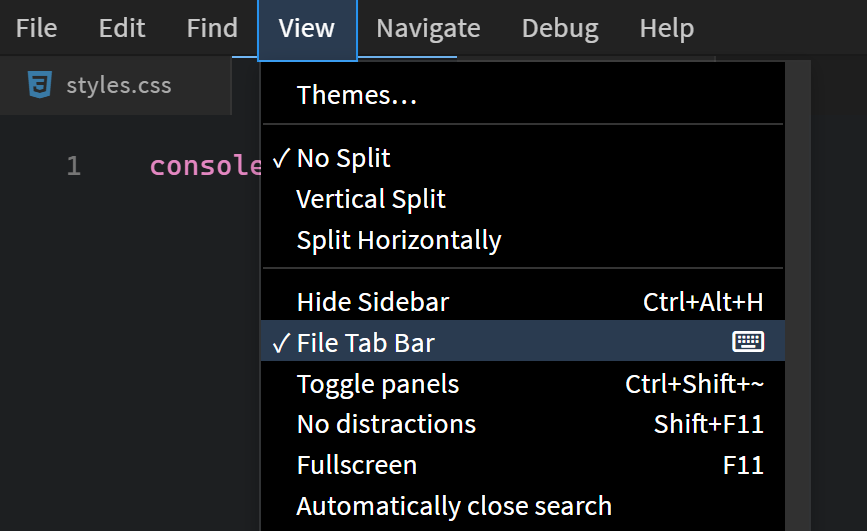
1. From the View Menu
Go to View > File Tab Bar to toggle it on or off.
2. From the Sidebar
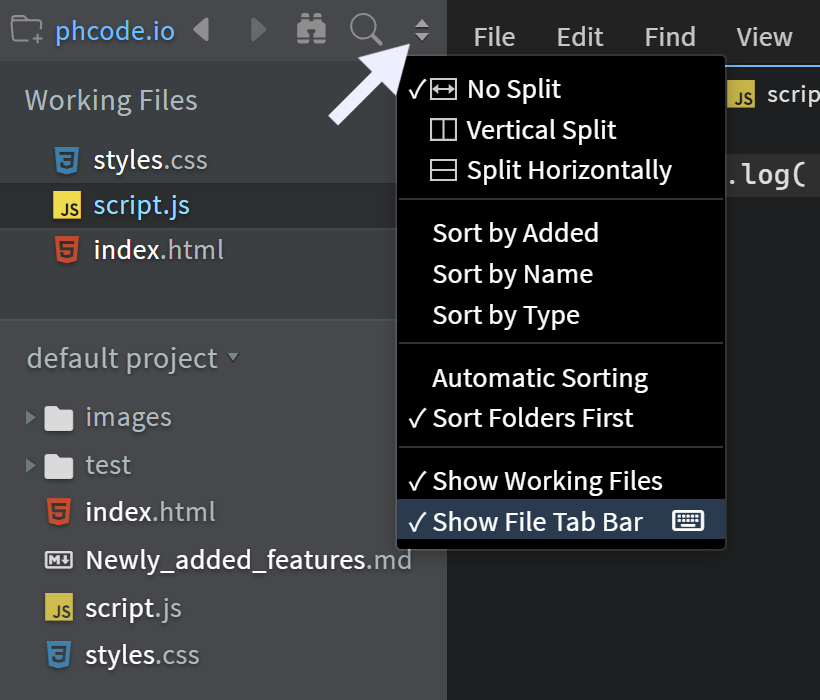
Click the double-arrow icon in the top-right corner of the sidebar,
then use the Show File Tab Bar option in the dropdown to toggle the Tab Bar.
3. From Preferences
You can also toggle the Tab Bar by updating the showTabBar option in the preferences file.
"tabBar.options": {
    "showTabBar": false
}
Add this in your preferences file to hide the Tab Bar.
Set the value to true to enable it.
See Editing Preferences if you need help in editing the preferences.
Working Files
Working Files (also called Working Tree) provides another way to view and manage open files. It appears in the sidebar, above the File Tree.
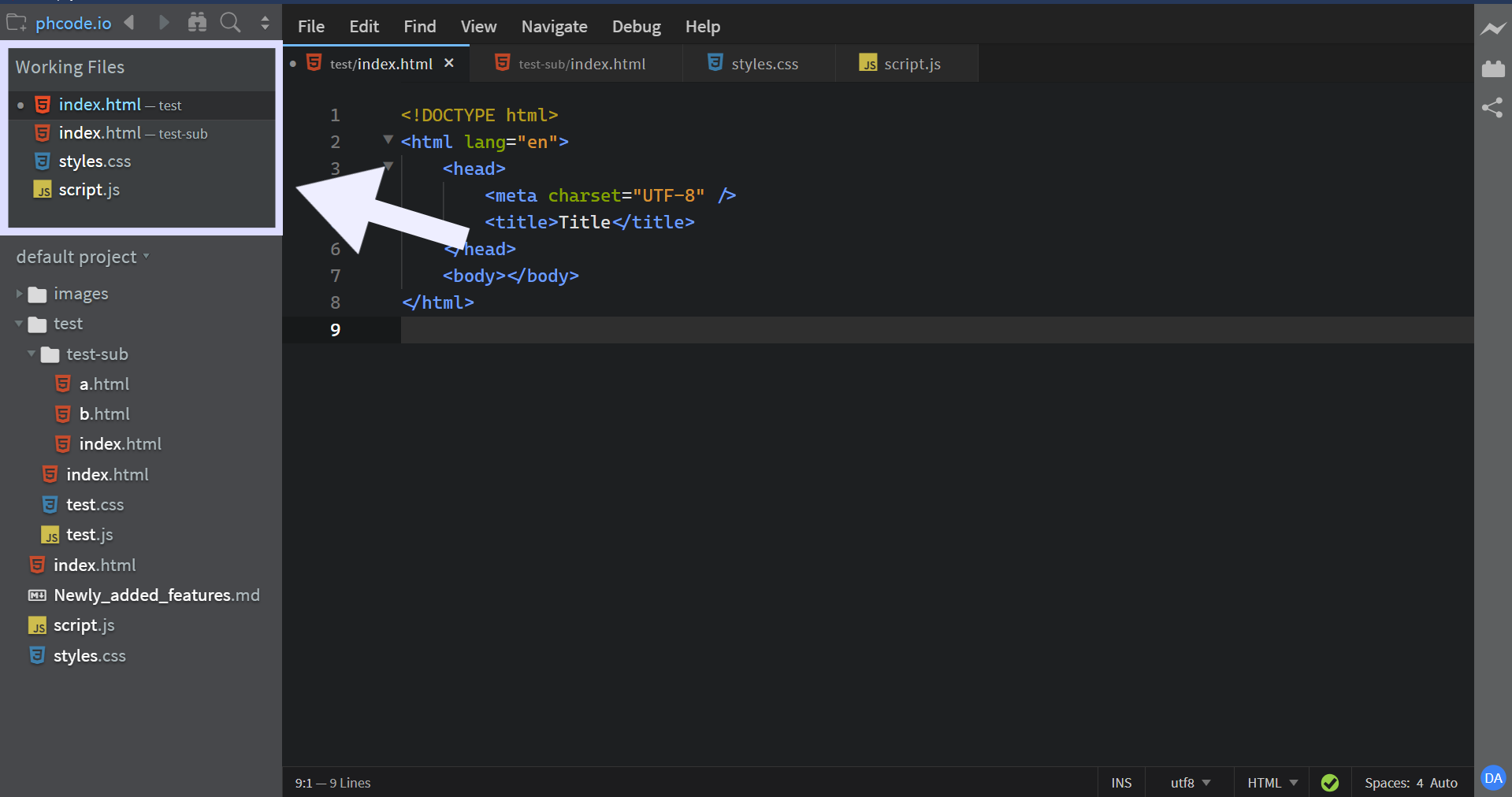
Working Files and Tab Bar are synchronized, which means that any operation performed on one (closing, reordering, opening files, etc.) is automatically reflected on the other.
Working Files displays the same UI elements as the Tab Bar:
•icon for unsaved files×button to close files- Parent folder names when multiple files have the same filename
- Tooltip showing full file path on hover
- Git status indicators (green for untracked, orange for modified files and gray italics for gitignored files)
See the Tab Bar section for detailed explanations of these features.
Note: Unlike Tab Bar, you cannot control the maximum number of files displayed in Working Files.
Working Files in Split Panes
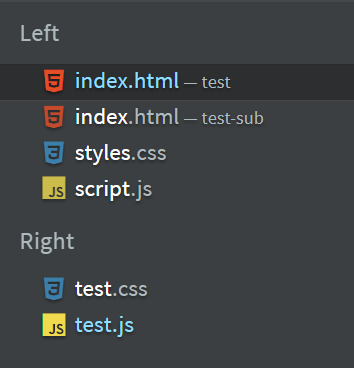
When using split panes, each pane maintains its own list of open files in Working Files.
The panes are labeled based on the split orientation:
- Vertical Split: Left (first pane) and Right (second pane)
- Horizontal Split: Top (first pane) and Bottom (second pane)
Drag-Drop in Working Files
You can reorder files in Working Files by dragging and dropping them, just like in the Tab Bar.
Working Files Context Menu
When you right-click a file in Working Files, a context menu appears with various file operations.
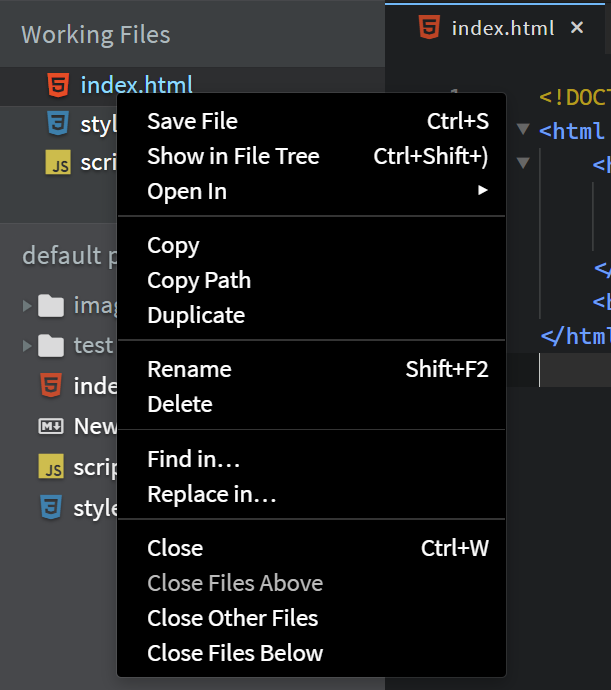
These options provide quick access to common file operations directly from Working Files.
Showing or Hiding Working Files
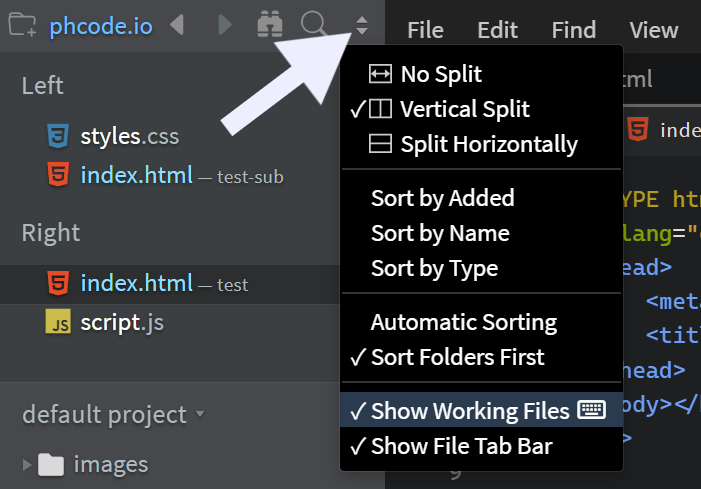
You can show or hide the Working Files panel in two ways:
1. From the Sidebar
Click the double-arrow icon in the top-right corner of the sidebar, then use the Show Working Files option in the dropdown to toggle Working Files.
2. From Preferences
You can also toggle Working Files by updating the showWorkingSet property in the preferences file.
"showWorkingSet": true
Set the value to false to hide Working Files.
See Editing Preferences if you need help editing the preferences.
Recent Files
The Recent Files dialog provides quick access to files you've recently worked on.
Opening Recent Files
- Desktop App: Press
Ctrl + R. - Browser: Press
Ctrl + Alt + Shift + O(asCtrl + Ris reserved for browser reloads).
To customize the keyboard shortcut, refer to the Keyboard Shortcuts Guide.
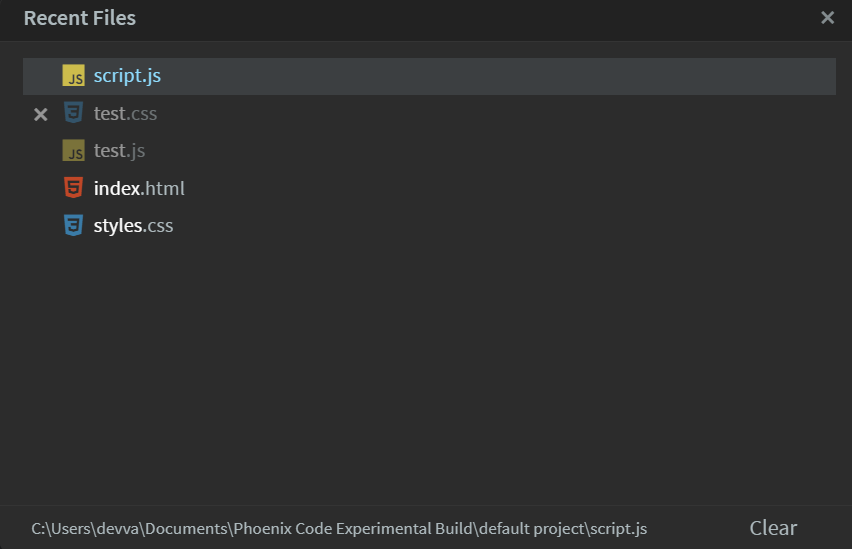
The dialog shows your recently opened files. Closed files appear in gray. Hover over them to see an x icon. Click it to remove them from the list. The Clear button at the bottom removes all closed files at once.
Currently open files cannot be removed from this list. Close them first to remove them.
To view a file's full path, hover over it or check the bottom-left corner of the dialog when a file is selected.
File Recovery
Phoenix Code has a built-in File Recovery feature to help you retrieve unsaved changes after unexpected events like crashes or accidental closures.
Recovering Files After a Crash
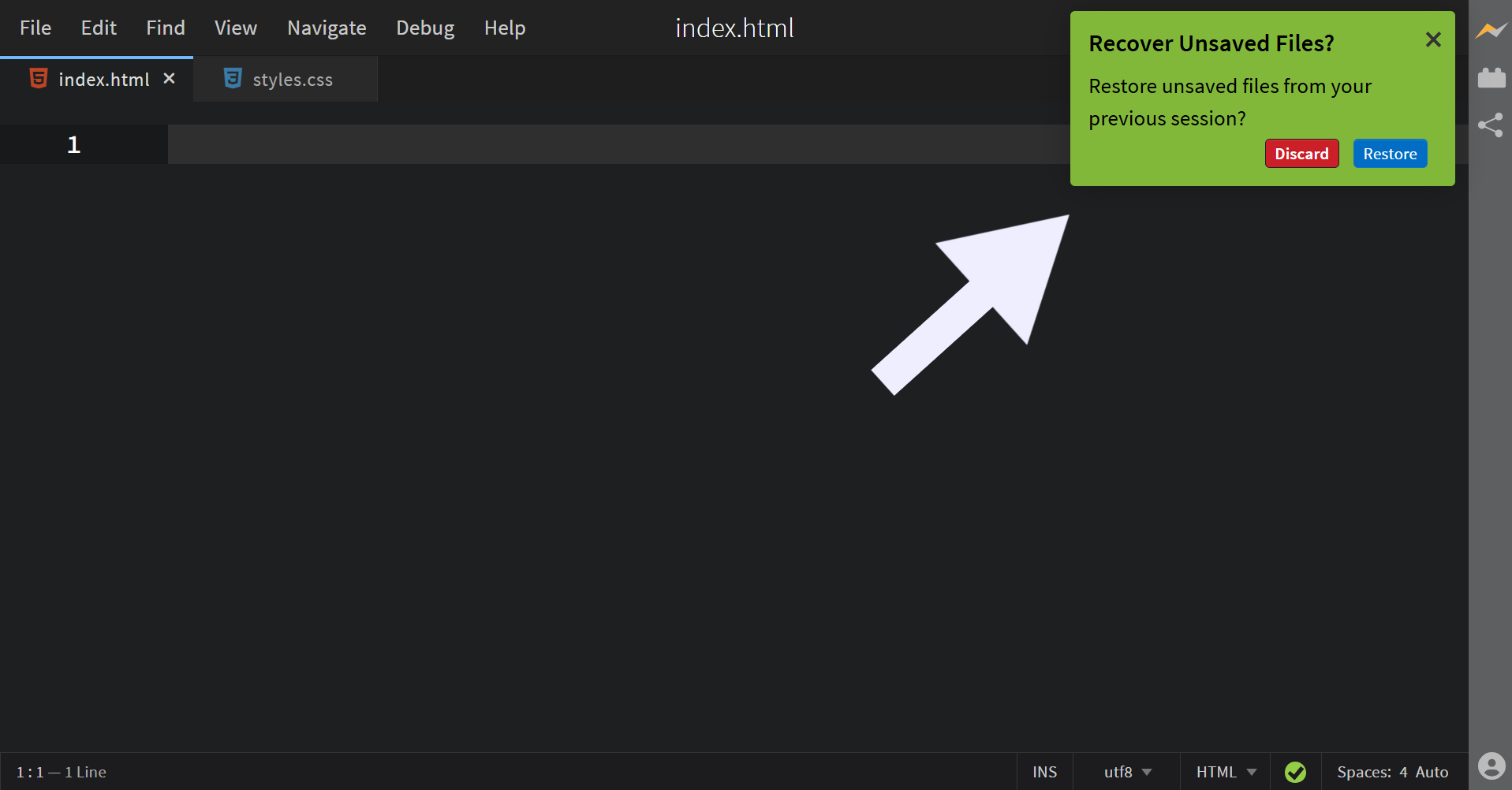
When you reopen the editor, if there are any unsaved changes from the previous session, a dialog box will appear with two options: Discard and Restore.
-
Restore: Recovers your unsaved files by reinstating all changes made before the last save.
-
Discard: Removes the unsaved changes. This will permanently delete the data.
Language and Encoding
Each file has two settings that control how Phoenix Code interprets its contents: the language it should be treated as, and the character encoding used to read and write it. Both are controlled from buttons in the editor's status bar.
File Encoding
File encoding is the method used to represent text in a file by converting characters into bytes. We need it to ensure that text is displayed correctly across different platforms and to handle special characters or symbols. Phoenix Code Editor supports multiple file encoding formats.
UTF-8 is the default encoding format in Phoenix.
Set Encoding of a file
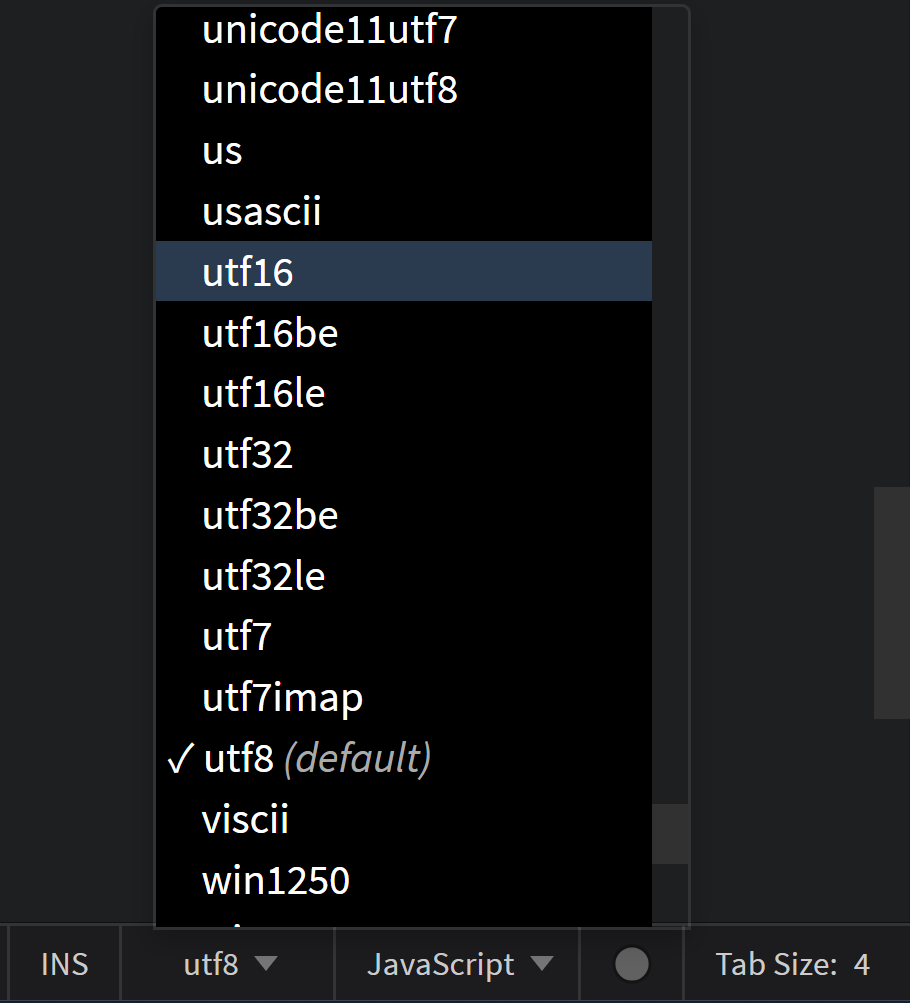
- Click on the
utf8button on the status bar. (UTF-8 represents the default encoding format). - A list of available encoding formats will appear. Select your desired format, or start typing to filter and find matching options in the drop-down menu.
File Type Associations
File Type Associations (Associating a file type with a language) allows Phoenix Code Editor to provide language-specific features, such as syntax highlighting, code completion, and error checking, based on the file extension. This ensures that your files are treated according to their intended programming or markup language.
When you create a new file, if the file extension is recognized, it is associated with the default language. If the extension is unknown, a generic text file is opened.
Associate a new file type with a language
To associate a new file type with a specific language in Phoenix Code Editor, use the Language dropdown button in the status bar. For example, if you want files with .myjs extension to be treated as JavaScript files, follow these steps:
- Create a new file with the desired extension. For our example, we create (newfile.myjs). By default, it will be associated with a Text file.
- Click on
Textbutton on the status bar. - A list of all the supported languages will appear. Select the language you want to associate with the file type. For our example, we select
JavaScript.
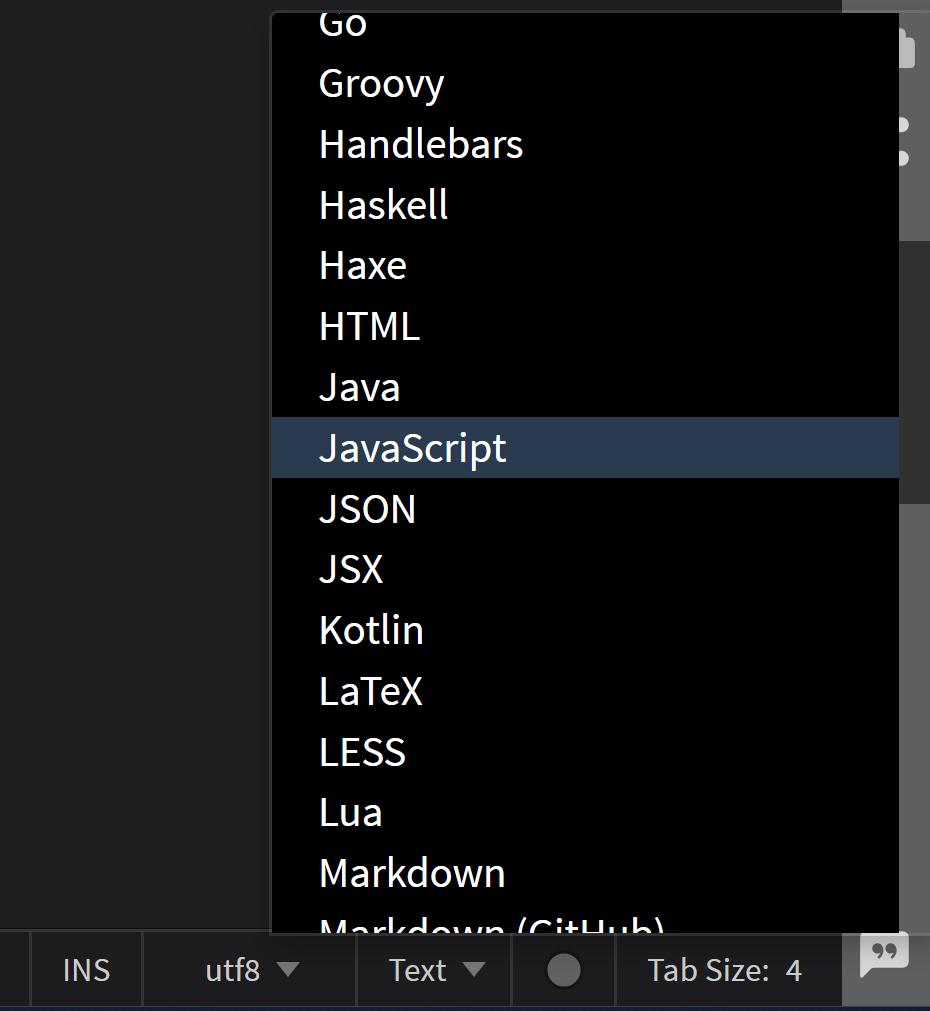
- At the top of the popup box, you'll find an option labeled
Set as default for .myjs files. Click on it.
Now, files with .myjs extension will be treated as JavaScript files.