Custom Snippets
Custom Snippets let you create your own reusable code hints. You can define short abbreviations that expand into full code snippets when selected from the code hints that appear as you type. In the code hint, Phoenix Code displays a small Snippet label on the right, indicating that the hint comes from custom snippets.
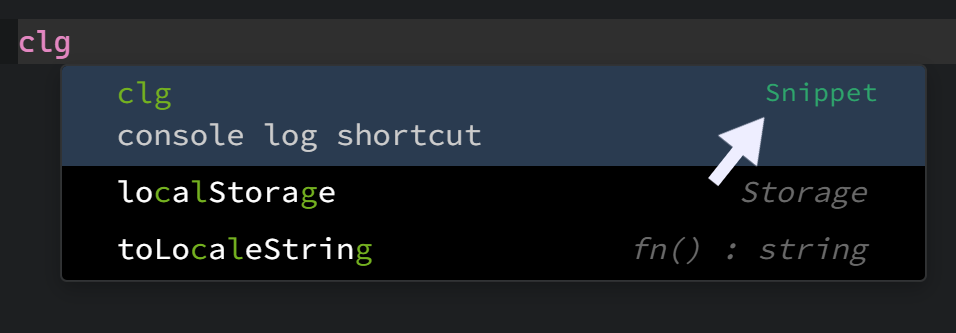
You can also specify which file types each snippet should work with, so they appear only where they’re relevant.
Additionally, you can define the cursor position within a snippet. After expansion, Phoenix Code automatically places your cursor exactly where you want it, allowing you to start typing right away.
The snippets you define are available globally, so you don’t need to recreate them for every folder.
Note: Custom Snippets have the highest priority and will appear above all other code hints.
Custom Snippets Panel
You can manage all your snippets from the Custom Snippets panel.
To access it, navigate to File → Custom Snippets....
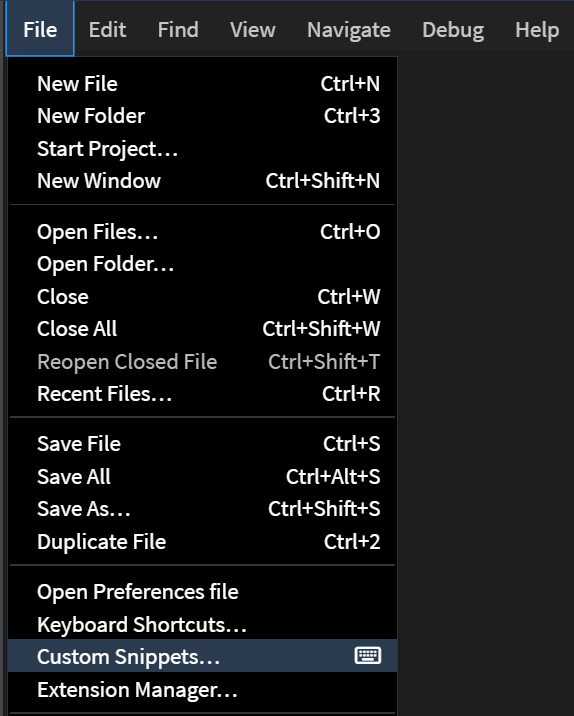
The panel appears at the bottom of the editor.
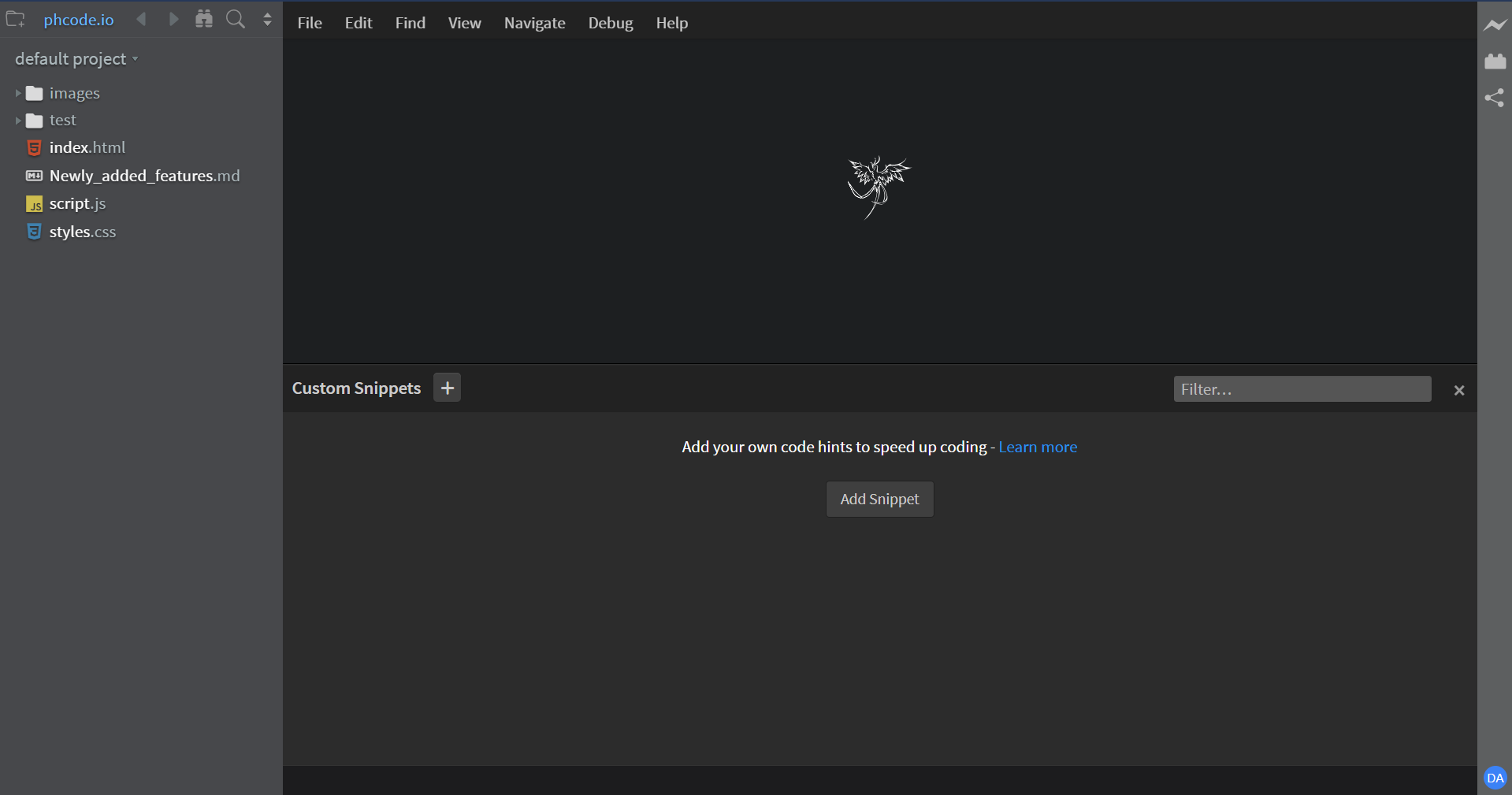 If you haven’t added any snippets yet, the panel will be empty.
Add Snippet
To add a snippet, click on the '+' button that appears on the panel header.
Alternatively, if your snippets panel is empty, Phoenix Code shows a large
Add Snippetbutton in the panel itself.
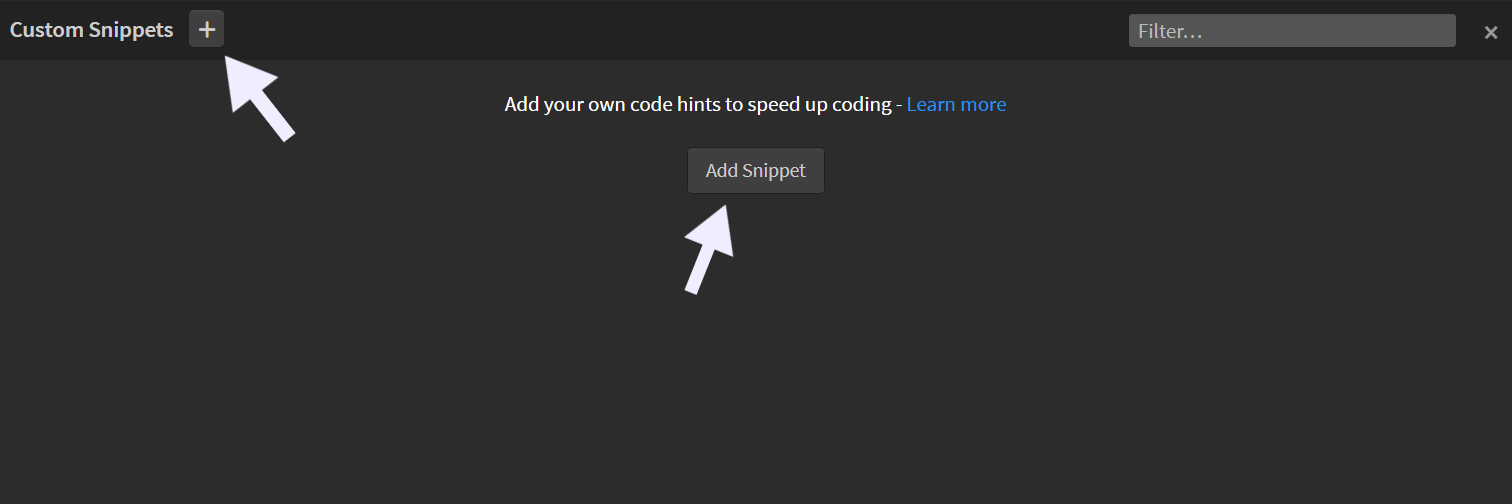
Clicking on it opens the Add Snippet panel.
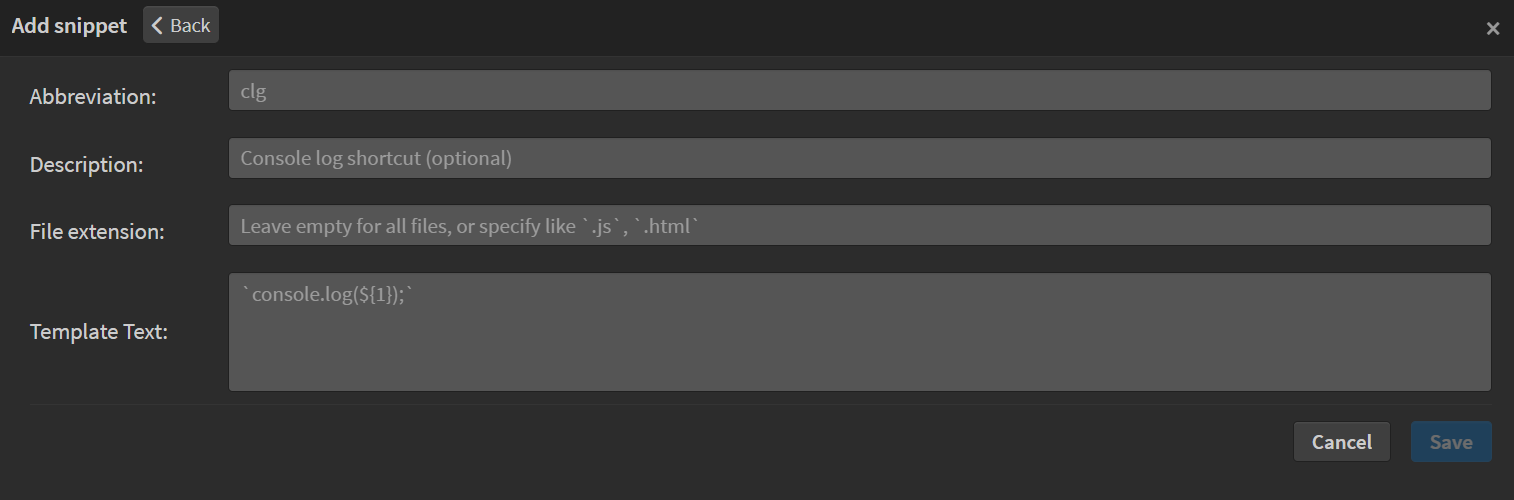
Understanding the Add Snippet Panel
The Add Snippet panel contains four input fields, each with placeholder examples to guide you:
| Field | Description |
|---|---|
| Abbreviation required | The shorthand text that triggers your snippet. For example, typing clg could expand into a longer code block. |
| Description optional | A short explanation of what the snippet expands to. This appears in the code hint. Example: console log shortcut. |
| File Extension optional | Specifies which file types the snippet should be active in. For example, .js, .ts will make the snippet available in JavaScript and TypeScript files. ⚠️ Use file extensions, not file or language names, and separate multiple entries with commas. When left blank, the snippet works for all file types. |
| Template Text required | The actual code or content your snippet expands into. For example, typing clg could expand to console.log();. |
Example Snippet
The image below shows a complete snippet configuration:
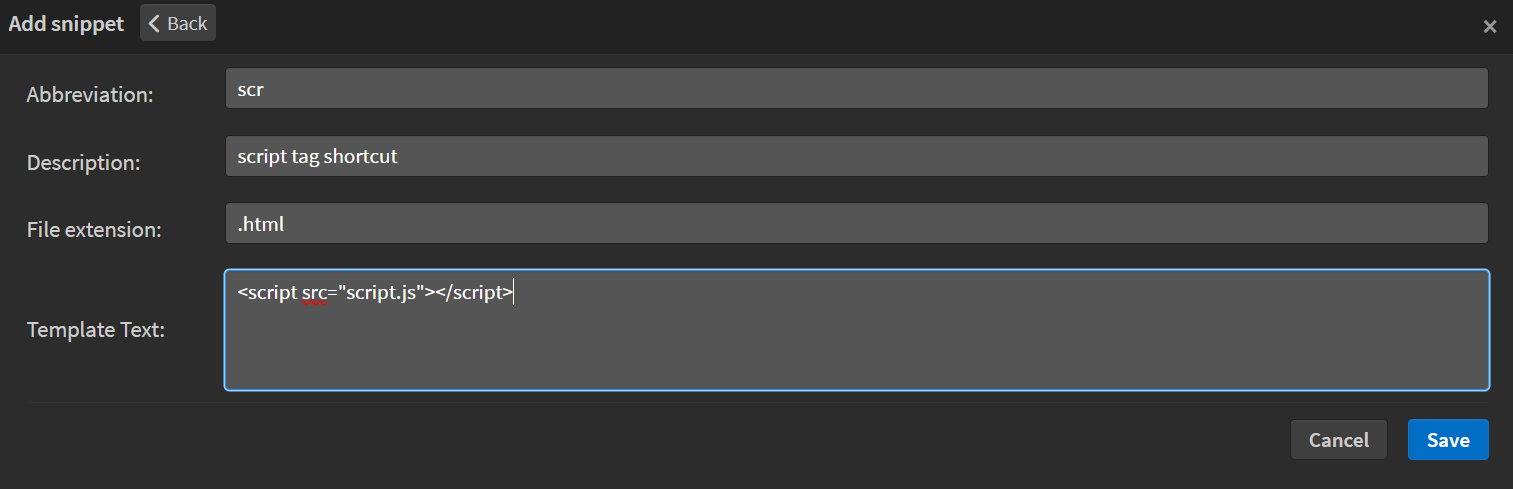 After entering the values, click
 Save.
Your snippet will be added to the list and can be used immediately in Phoenix Code.
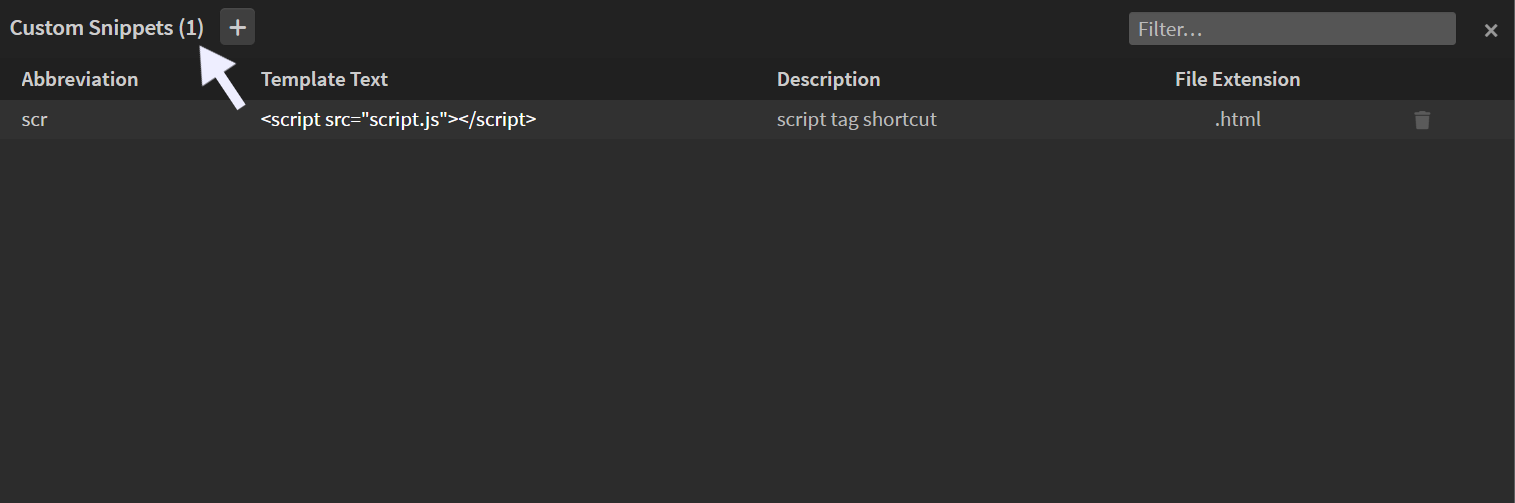 In the panel header, you can see the total number of snippets you’ve added. You can create as many snippets as you like.
Edit Snippet
You can edit an existing snippet whenever you need to make changes. To edit a snippet, click the snippet you want to edit from the snippets list. This will open the Edit Snippet panel.
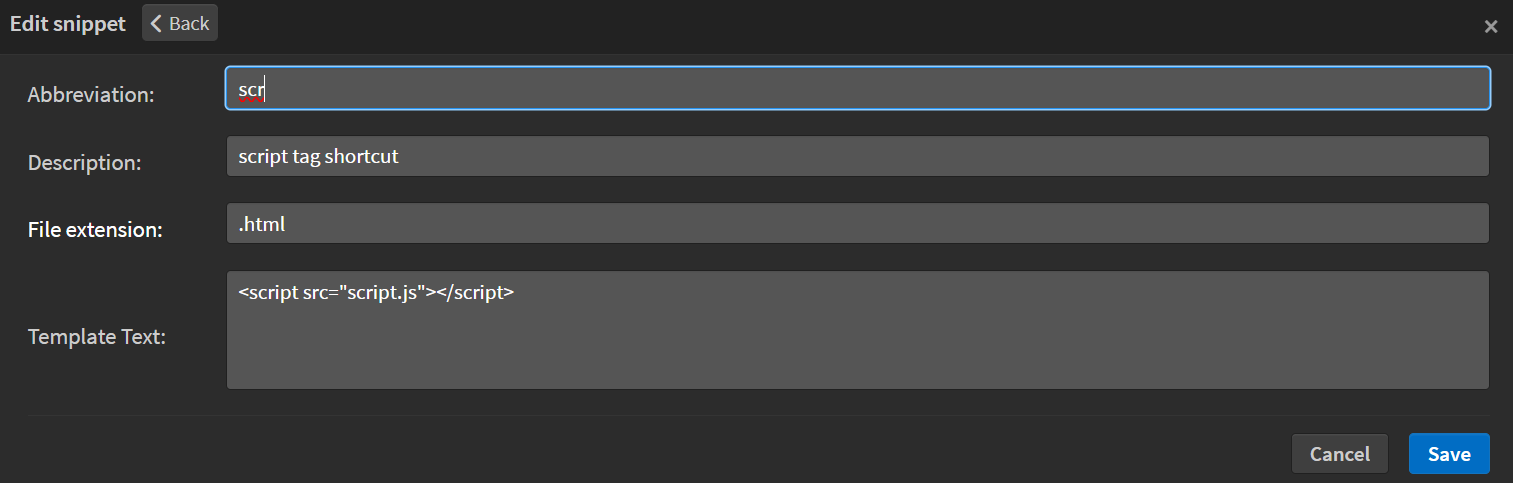
Update the fields you want to modify.
For example, in the snippet shown below, we’ve updated the Abbreviation from scr to script.
After making your changes, click Save.

You can see that the snippet is now updated with the new Abbreviation.
Delete Snippet
Deleting a snippet is simple. From the snippets list, click the Trash Bin icon on the right side of the snippet you want to remove. This will immediately delete the snippet.

⚠️ Caution: Deleting a snippet is permanent and cannot be undone.
Filter Snippets
When you have a large collection of snippets, the Filter feature helps you quickly narrow down the list. You’ll find it on the top-right side of the snippets panel.
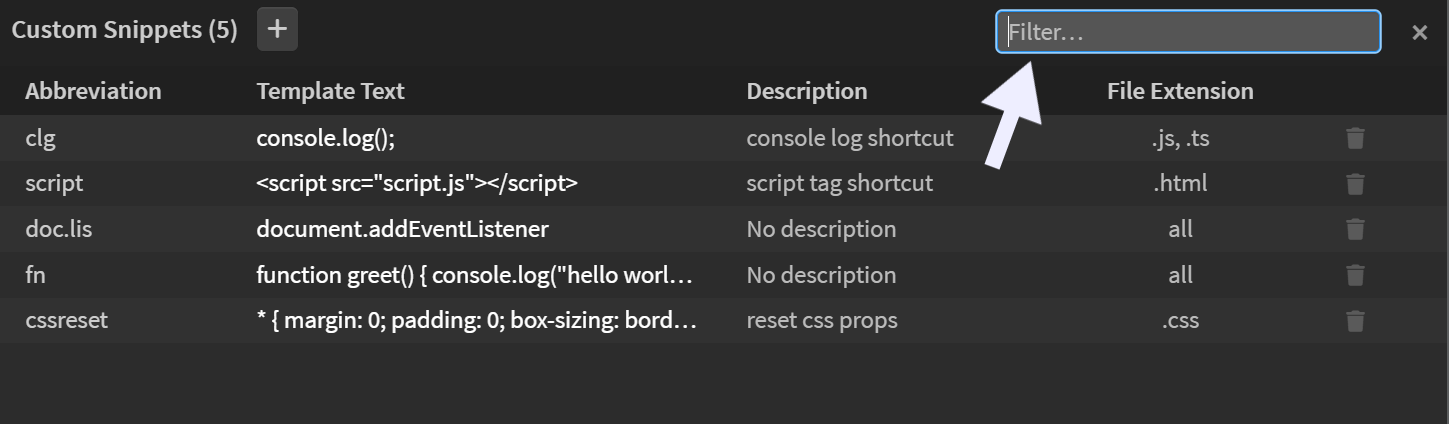
You can filter the list by any value, such as Abbreviation, Description, File Extension, or Template Text.
Snippet Cursor Position
Phoenix Code custom snippets also allows you to define cursor positions within a snippet to make editing even faster.
By adding numbered cursor placeholders, you can jump between key points in the expanded snippet using the Tab key.
How It Works
Inside the Template Text, you can include placeholders like ${1}, ${2}, ${3}, and so on.
When the snippet expands:
- The cursor starts at
${1}. - After entering your desired text, press
Tabto move to the next placeholder. - Continue pressing
Tabto cycle through the numbered positions. - The cursor finally lands at
${0}. If${0}isn’t defined, it lands at the last numbered placeholder.
Here’s an example of a snippet with numbered cursor placeholders:
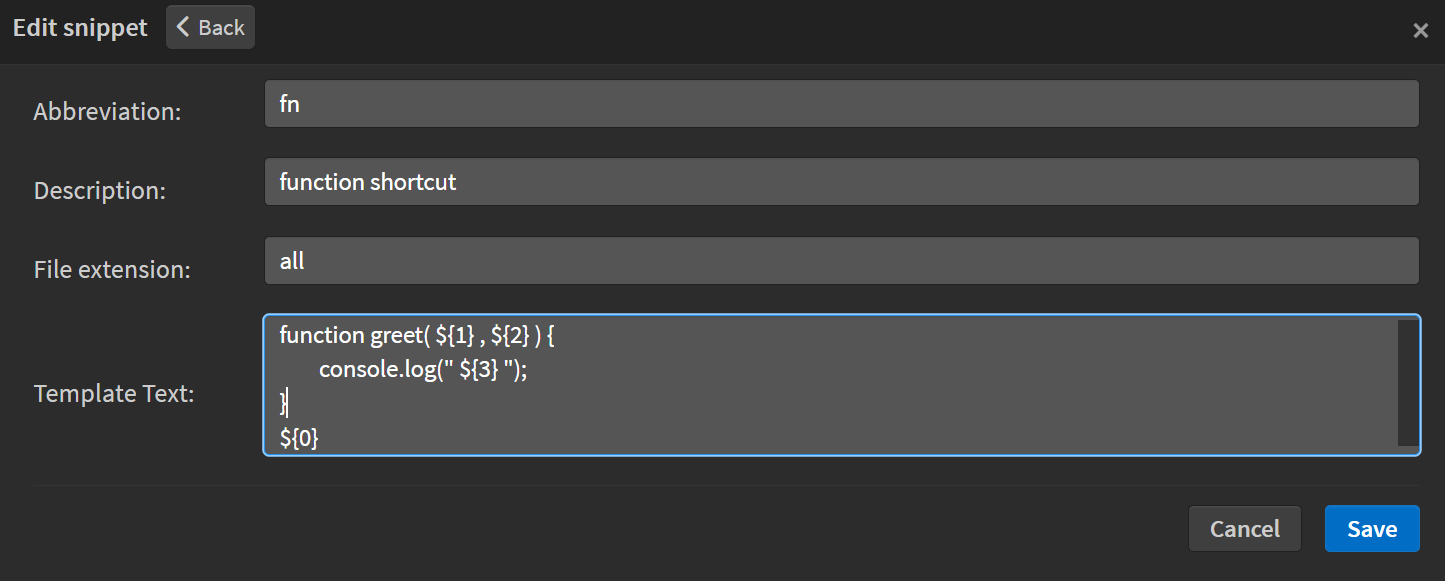
To move backward through the placeholders, press
Shift + Tab.
Once you reach the final cursor position, pressing Tab again will remove any remaining unfilled placeholders from the expanded snippet.
FAQ
Q. Is there a maximum limit on the length of the abbreviation?
Yes. Phoenix Code sets some limits for certain fields. The Abbreviation can have a maximum of 30 characters, and the Description can have up to 80 characters. There’s no restriction on the length of the Template Text or File Extension.
Q. What happens if there are two snippets with the same abbreviation?
Phoenix Code does not allow adding two snippets with the same abbreviation.
However, abbreviations are case-sensitive, so variations like log and LOG are treated as different snippets.
Q. Do I need to type the full abbreviation for the snippet hint to appear?
Yes. The snippet hint appears only when you type the complete abbreviation. This is an intentional UX decision, since custom snippets have the highest priority, showing hints for partial abbreviations could clutter suggestions and hide default hints.