Build a page with Bootstrap
Build a page with a button that opens and closes a message. You'll then make the button green and check the page at a narrow screen width.
Bootstrap supplies the page's ready-made styles. This exercise works in Community (free) and Phoenix Pro. Keep an internet connection: the starter loads Bootstrap from the web.
1. Open the starter page
- Download the Bootstrap starter.
- Extract the ZIP.
- In Phoenix Code, choose Open Folder and open the extracted
bootstrap-starterfolder. - Click
index.htmlin the file list. - Click the lightning bolt to open Live Preview.
You should see “Hello from Phoenix Code”, two sections called Build and Preview, and a blue Show a tip button.
If Phoenix Code asks whether you trust this starter project, click Trust & Execute Preview to open it.
2. Try the button
- Click Pop Out to New Window in the preview toolbar.
- In the new browser window, click Show a tip.
- Check that a bordered message appears.
- Click the button again. The message should disappear.
Keep this browser window open. You'll use it again after changing the button.
3. Make the button green
Choose your edition below.
- Phoenix Pro
- Community (free)
- Click the maximize icon in Phoenix Code's Live Preview toolbar to enter Design Mode. If the editor is already hidden, keep this view.
- If the pen button in the preview toolbar is gray, click it to turn on Edit Mode. An orange pen means visual editing is on.
- Click Show a tip once to select the button.
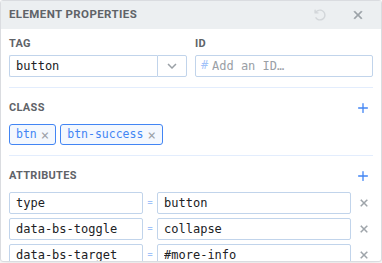
- Click the section showing
buttonin its floating toolbar. This opens Element Properties. - Under Class, click the × on
btn-primaryto remove it. - Click the plus button, type
btn-success, and press Enter. Keep thebtnclass. - Click the floppy-disk icon in the narrow toolbar to the left of the preview. Its tooltip says Save File.
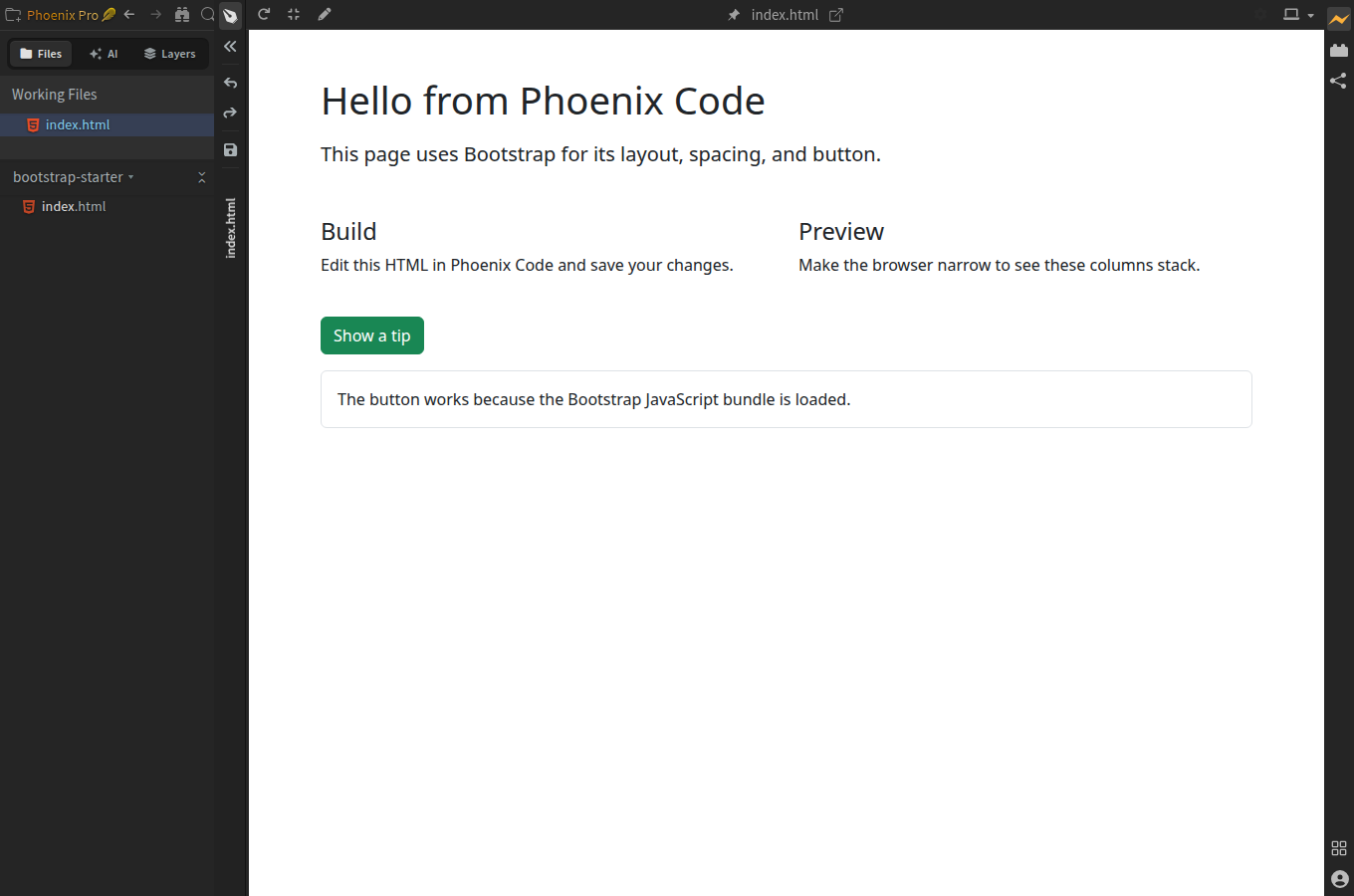
Design Mode gives the preview more room; Edit Mode enables visual changes. You can stay in Design Mode while saving.
Click the orange pen to turn visual editing off and try your green button while staying in Design Mode.
- Return to
index.htmlin Phoenix Code. If the preview fills the app, click its restore icon to show the editor again. - In the Live Preview toolbar, click the small down arrow beside the pen and choose Highlight Mode.
- Click Show a tip in the preview inside Phoenix Code. The editor moves to its
<button>tag. - In that tag's
classvalue, select justbtn-primaryand replace it withbtn-success. - Save with Ctrl+S on Windows/Linux or Cmd+S on macOS.
The button's class should now read:
class="btn btn-success"
Keep the rest of the button's line as it is.
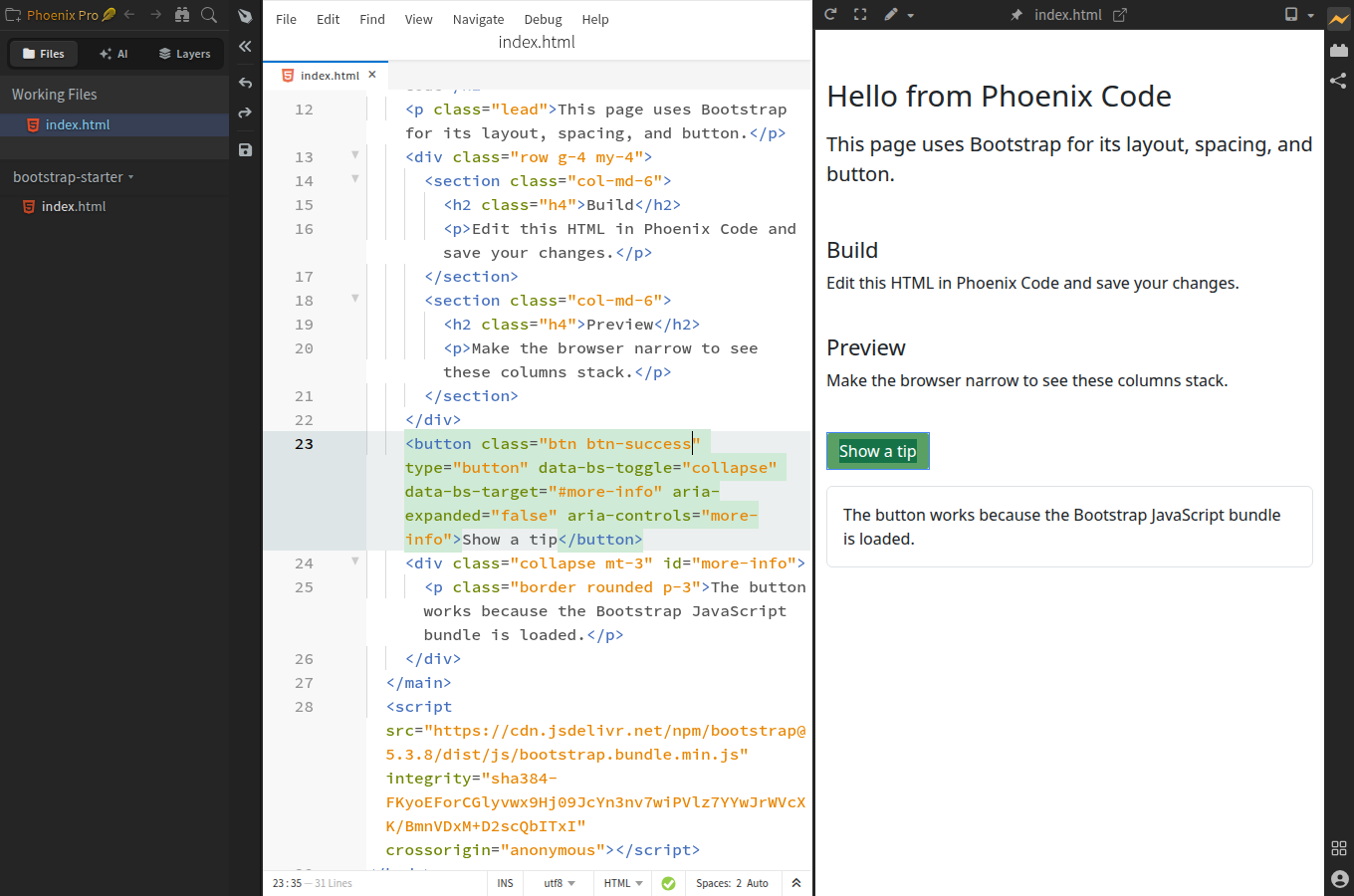
The click may also show or hide the tip. You can continue editing the button's code either way.
You should see a green button. Return to the separate browser window and reload it. Click the button to check that it still opens the message.
4. Try a smaller screen
Make the separate browser window narrower. Build and Preview should move from two columns to one above the other.
If you have Pro, find the device-size controls at the right end of the Live Preview toolbar. Click the down arrow beside the device icon and choose a phone size. The device icon changes to match the current preview width. See Device Preview.
You've changed a Bootstrap component and checked its layout. Next, add a page link or share your website.
Need help?
Clicking the button doesn't find its code
Keep index.html open and choose Highlight Mode in Phoenix Code's preview toolbar. If the preview fills the app, click the restore icon to show the editor again.
You can also press Ctrl+F on Windows/Linux or Cmd+F on macOS and search for btn-primary in index.html.
The page looks like plain text
Check your internet connection, then reload the preview. The starter uses Bootstrap 5.3.8 from an online file service. If your network blocks it, use Bootstrap's compiled download to work with local files.
The button looks right but doesn't open the message
Test it in the separate browser window. Edit Mode uses clicks to select the button.
If it still doesn't work, check that you kept the <script> line near the end of index.html. The button needs that Bootstrap script to open and close the message. Reopen a fresh copy of the starter if you want to compare the files.
The button didn't turn green
Check that its class contains btn btn-success. Remove btn-primary if it is still there, save the file, and reload the browser window.
To explore more components, use Bootstrap's getting started guide.