Replace text in one file
Use Find → Replace to change a heading or correct a word in the file you have open. Enter the old text and the words you want to use in its place.
You'll open a file, find the text, replace it, and save. These steps work in Community (free) and Phoenix Pro.
1. Open your file
If Live Preview fills the app, click its restore icon to show the editor and sidebar, the file list on the left.
If the file you want to edit is already open, go to step 2. If its project is open, start at item 3 below.
Need a sample file? Download the optional practice website and extract the ZIP. Use its first-website folder and index.html file in the steps below.
- Click the folder with a plus sign in the top-left corner of Phoenix Code. The Start Project window opens.
- Click Open Folder, select the folder containing your files, and confirm. This folder is your project.
- In the sidebar, double-click the file you want to change. Its contents open in the code editor. Check the filename above the code.
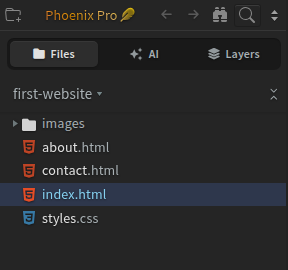
This example uses index.html in the first-website project. You can follow the steps with your own file.
Watch the walkthrough
The video starts with the project already open.
2. Enter the old and new text
- Open the Find menu at the top of the code editor and click Replace. Two text boxes appear above the code.
- In Find…, enter the word or phrase you want to change. Use text that appears in this file.
- In Replace with…, enter the new text.
- Leave the Regular Expression (
.*) button off for an ordinary text search.
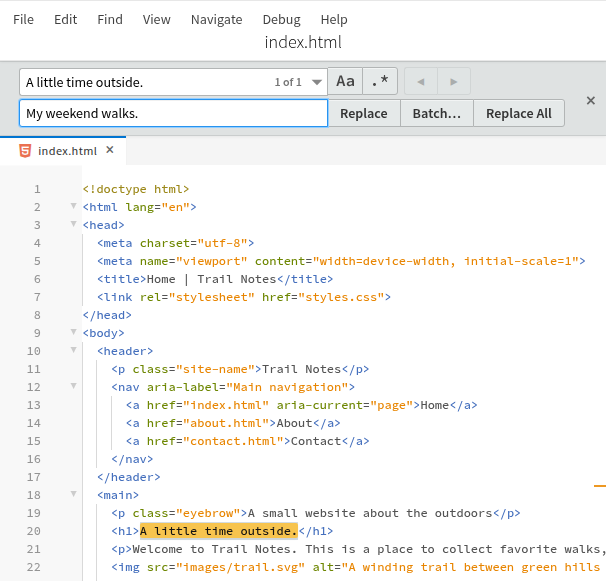
This example changes A little time outside. to My weekend walks. Use your own words when following the steps. Click the screenshot to view it full size.
A match is one place where the old text appears. Phoenix Code highlights a match in the editor and shows a count in the search box. 1 of 1 means it found one match in this file.
3. Replace and save
- Check the highlighted match in the editor. Use the ◀ and ▶ buttons to move between matches.
- Click Replace to change the highlighted match, or Replace All to change every match in this file.
- Press Esc to close the search bar.
- Choose File → Save File, or press Ctrl+S on Windows/Linux or Cmd+S on macOS.
Check that the new text appears where you expected. In the example, the heading in index.html should now read My weekend walks.
Shortcut: open Replace with Ctrl+H on Windows/Linux or Cmd+Option+F on macOS. Use Find → Replace if your browser or operating system handles the shortcut instead.
Need help?
Why can't I find the text?
Check that the intended file is open. Copy the text directly from that file to avoid differences in spacing or punctuation.
Leave Regular Expression (.*) off. The Match Case (Aa) button makes capital and lowercase letters matter; turn it off if you want to find both.
If you don't know which file contains the text, first use Find in Files to locate and open it.
How do I undo a replacement?
Choose Edit → Undo in the same file, check the result, then save again.
To change several files, follow Replace text across files. To search across a project, see Find in Files.