Link to a section on the same page in Phoenix Code
Click Opening hours at the top of a café menu and the page scrolls down to the café’s weekday and weekend hours. This is an HTML anchor link. Its destination is a spot on the same page, also called a page anchor or Sprungmarke in German. You can try one right here. Jump to the link test in this guide.
You’ll give the link and its destination a matching name. Use the visual controls in Phoenix Pro or edit two HTML tags in Community (free).
1. Open the practice café menu
- Download the Alder Street Café practice project. On Windows, right-click the ZIP and choose Extract All. On macOS, double-click the ZIP. On Linux, use your file manager’s Extract action.
- In Phoenix Code, click the folder with a plus at the top left and choose Open Folder…. Select the extracted
cafe-hoursfolder that containsindex.html,styles.css, andbreakfast.jpg. Use the desktop app on Windows, macOS, or Linux, or the web app in Chrome or Edge. If Chrome asks to view the files in cafe-hours, choose Allow. More about opening a folder. - Double-click index.html in the file list. If the preview is closed, click the lightning bolt on the right. If prompted for this practice folder, choose Trust & Execute Preview.
Look for Alder Street Café, the Opening hours link at the top right, and a photo of mushroom toast. Scroll down in the preview to find the green Opening hours heading below the lunch menu, then scroll back up. The starter link currently points to the top of the page.
2. Connect the link to the heading
The steps below save both changes in index.html. In Chrome, the first save can bring up Save changes to cafe-hours? Choose Save changes to write your edits to the extracted folder.
- Phoenix Pro
- Community (free)
Set the link destination
- In the preview toolbar, click the maximize icon to enter Design Mode. Click the pen if it’s gray. An orange pen means Edit Mode is on.
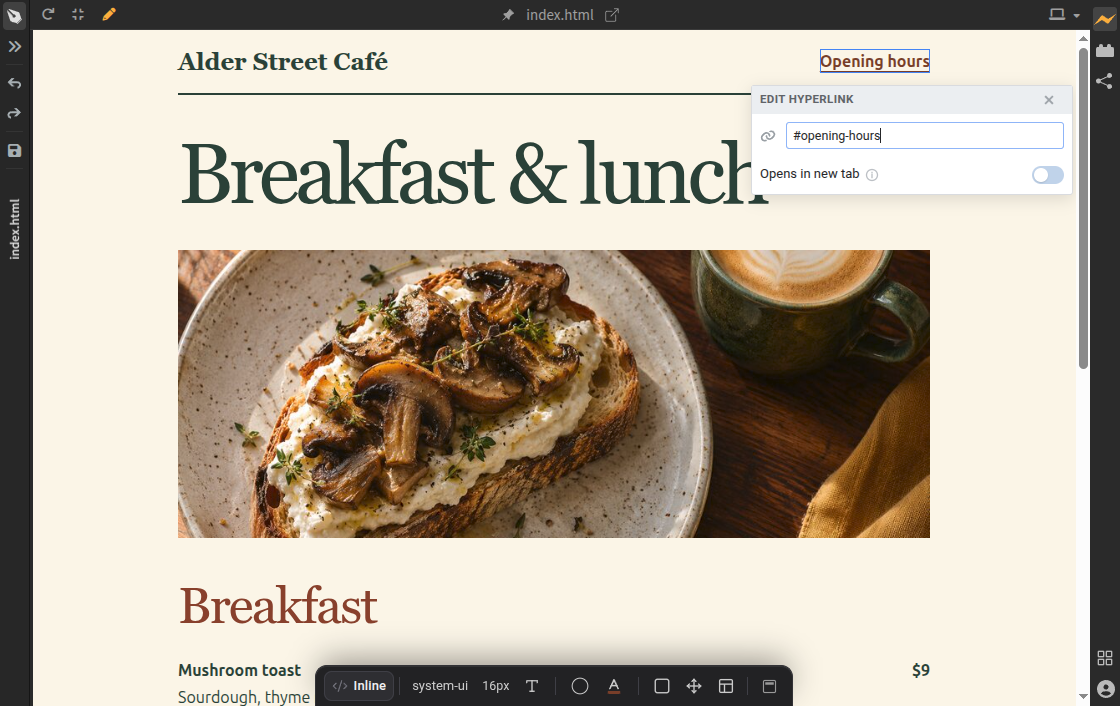
- Click Opening hours at the top right of the café menu. A blue toolbar appears beside the selected link. Click its chain icon to open Edit Hyperlink.
- In the URL field, replace
#with#opening-hoursand press Enter. The#tells the browser to look for a destination on this page.
Name the destination heading
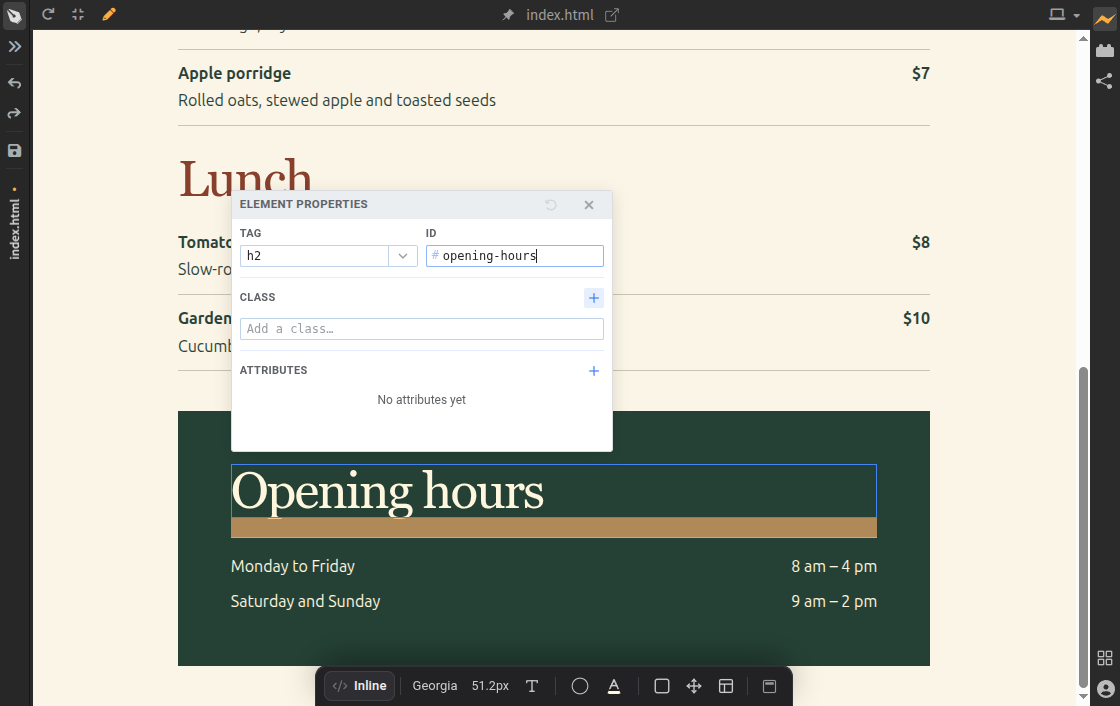
- Scroll down inside the preview. Click the words Opening hours in the green panel. Look for h2 in the blue toolbar. If you see section, click the heading text itself.
- Click h2 on the left of the toolbar to open Element Properties. In the ID field, type
opening-hoursand press Enter. The field has its own # label. Type only the name. - Press Esc to close the panel. Click the Save File icon in the narrow strip to the left of the preview to save index.html. Click the orange pen to turn off editing.
Change the link in index.html
-
Keep the code editor and Live Preview side by side. If the preview fills the app, click the restore icon in its toolbar. Click the small arrow beside the pen and choose Highlight Mode. This lets you click a heading in the preview to find its HTML.
-
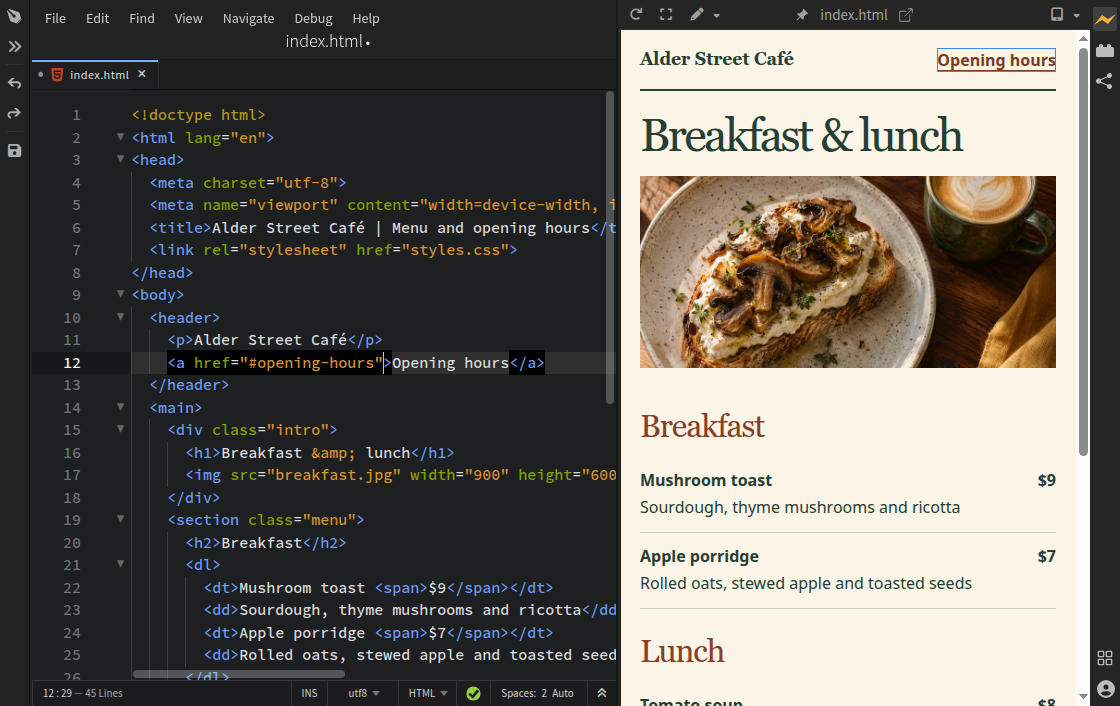
Near the top of index.html, find the link between
<header>and</header>. It reads<a href="#">Opening hours</a>. Select justhref="#"and replace it withhref="#opening-hours". Compare your line with the example below.<a href="#opening-hours">Opening hours</a>
Give the heading its matching ID
-
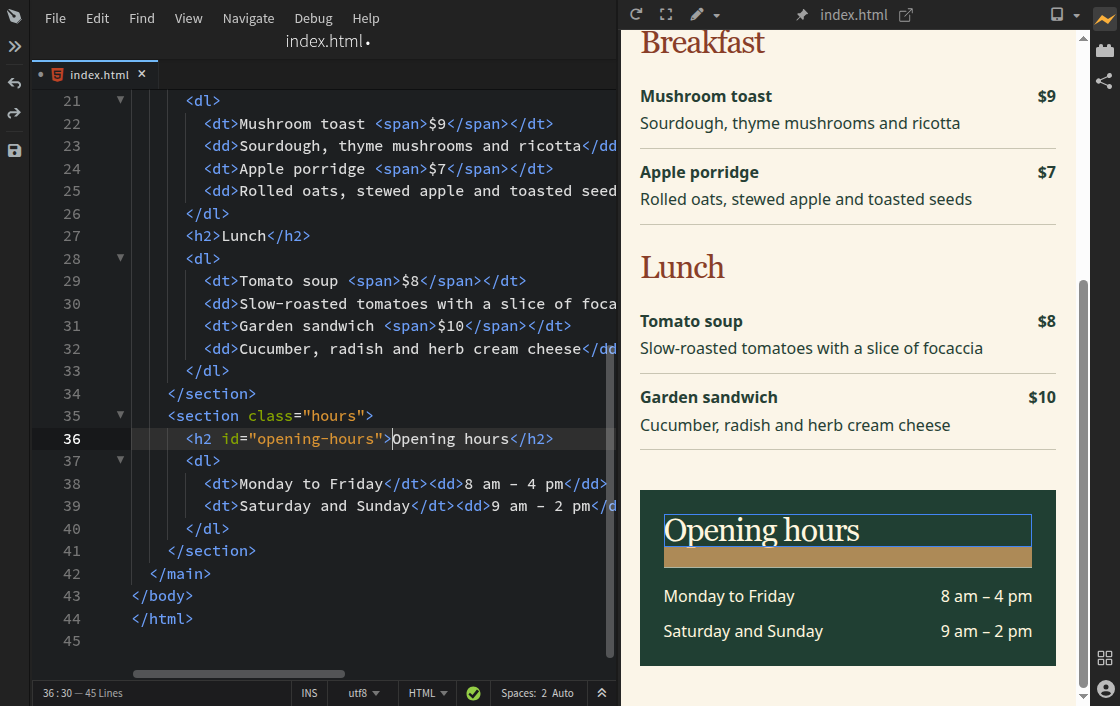
Scroll down inside the preview and click Opening hours in the green panel. The editor moves to
<h2>Opening hours</h2>. -
Select just the opening
<h2>and replace it with<h2 id="opening-hours">. Keep the heading text and closing</h2>as shown below.<h2 id="opening-hours">Opening hours</h2> -
Click File → Save File or the Save File icon beside the editor. You can also press Ctrl+S on Windows or Linux, or Cmd+S on macOS. Open the small arrow beside the preview pen and choose Preview Mode to try the link as a visitor.
3. Test your link
Scroll back to the top of the preview and click Opening hours. The same menu should scroll until you can see the green heading, Monday to Friday, 8 am – 4 pm, and Saturday and Sunday, 9 am – 2 pm.
You can also open the saved index.html from your file manager in a browser. Press Tab to focus the link and Enter to follow it. The address now ends in #opening-hours. If the whole menu already fits on your screen, make the window shorter and try again to see the jump.
If clicking the link takes you back to the top, check both values in index.html. The link needs href="#opening-hours" and the heading needs id="opening-hours". Match the spelling, capital letters, and hyphen. Give that ID to just one element on the page, then save and try again.
On your own page, choose a short name for the section you want to link to. For example, a link to #desserts finds the element with id="desserts". To open a separate file such as a contact page, follow Link to another page.