Phoenix Code won’t open or crashes on startup
If you click Phoenix Code and it closes or no editor window appears, start with what you see. Phoenix Pro and Phoenix Code Community (free) use the same desktop app and the same recovery steps.
- An error box appears. Copy the error before closing the app.
- No window opens, or it closes straight away. Restart the computer and try again.
- The editor is open again. Check your project and recover unsaved changes.
If you see “Oops! Something went wrong”
- In the error box, click Copy Error. When you see Error Message copied!, click OK. Paste the message into a note so you can find it again after restarting.
- Click Quit App. Wait for the Phoenix Code window to close, then open Phoenix Code again.
- If the editor opens, check your files. If the same error returns, Get Help opens the Phoenix Code support discussions in your browser.
How do I fix startup crashes if no window opens?
Save any work you have open in other apps, then restart your computer. Once you’re signed in, open Phoenix Code from Start on Windows, Finder → Go → Applications on Mac, or your applications menu on Linux.
If the editor opens, skip to checking your files. If it still closes, follow the repair steps for Windows, Mac, or Linux.
Reinstall the desktop app
These steps replace the app’s program files and keep your personal settings. Projects you saved in a folder such as Documents stay there. If you saved a project inside the Phoenix Code installation folder, copy that project to Documents before continuing. For work you hadn’t saved, look for the recovery prompt when the editor reopens.
Repair a startup crash on Windows
-
Download the Windows installer from phcode.dev. In File Explorer → Downloads, double-click the file whose name ends in -setup.exe. If a language box appears, choose your language and click OK.
-
Click Next on the welcome screen. Review the license agreement and click I Agree if you accept it.
-
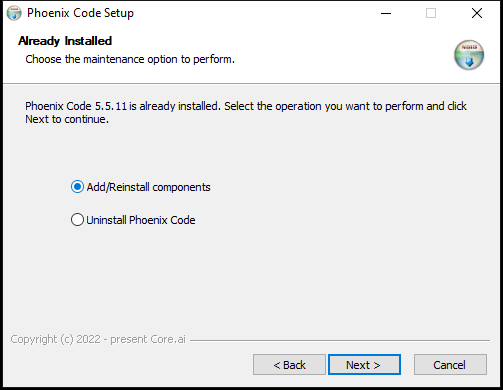
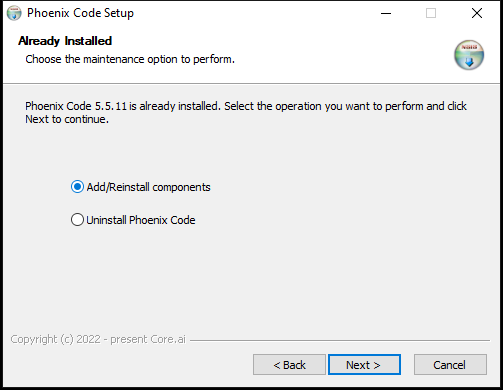
On the Already Installed screen for the same version, choose Add/Reinstall components and click Next. If Setup says you have an older version, choose the option to keep your existing installation and continue with the update.
-
On Choose Install Location, keep your existing folder and click Next. On Choose Start Menu Folder, click Install.
-
When you see Installation Complete, click Next. Leave Run Phoenix Code checked and click Finish. To open it again later, type Phoenix Code in Start and click the app.
Repair Phoenix Code on a Mac (macOS)
On a Mac, you repair Phoenix Code by copying a fresh app into Applications. Your editor settings and projects saved in Documents stay in place. If Phoenix Code is still open, save any work you can. Hold Control while clicking its icon in the Dock, then choose Quit.
-
Download the right Mac version. Open the Apple menu at the top left of your screen and choose About This Mac. On phcode.dev, click the arrow beside Download. Choose the entry that matches your Mac.
- Chip with an Apple name such as Apple M1 → Mac - Apple Silicon DMG
- Processor with an Intel name → Mac - Intel DMG
Now click the large Download button. It shows the Mac version you selected.
-
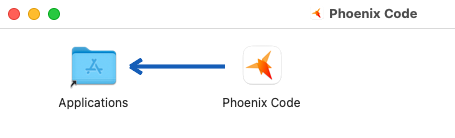
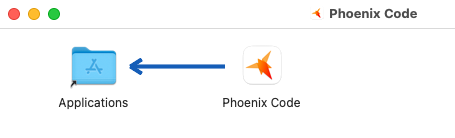
Open the download. Click Finder (the smiling face in the Dock), then Downloads in the sidebar. Double-click the Phoenix Code file ending in .dmg. If the license window appears, review it and click Agree if you accept. A Finder window opens with an orange Phoenix Code app and a blue Applications folder.
-
Drag the app into the folder. Press and hold the orange Phoenix Code icon. Move it onto the blue Applications folder in the same window, then let go. The folder is a shortcut to the place where your Mac keeps installed apps.
-
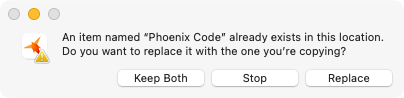
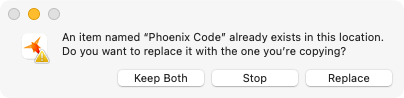
Replace the existing copy. If Finder says Phoenix Code already exists, click Replace on the right. Enter your Mac login password if Finder asks. If copying starts immediately, just let it finish.
-
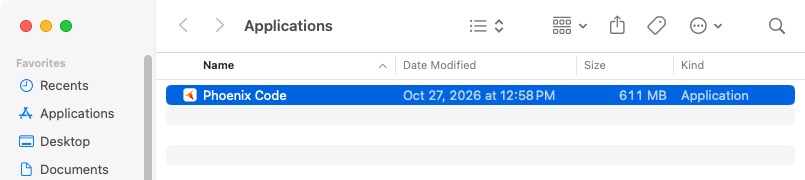
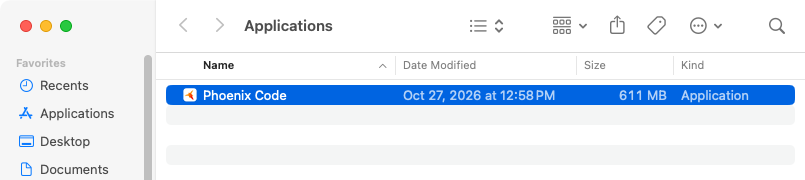
Open the repaired app. Once copying has finished, close the installer window with its red button. Click Finder, then choose Go → Applications from the menu bar at the top of the screen. Double-click Phoenix Code in that folder. When the editor opens, check your project and any recovered files.
Reinstall the AppImage on Linux
The official Linux installer downloads Phoenix Code as an AppImage. If you used the one-line installer before, run it again from the same Linux account.
-
Open Terminal from your applications menu. Copy the following line, paste it into Terminal, and press Enter.
wget -qO- https://updates.phcode.io/linux/installer.sh | bash -
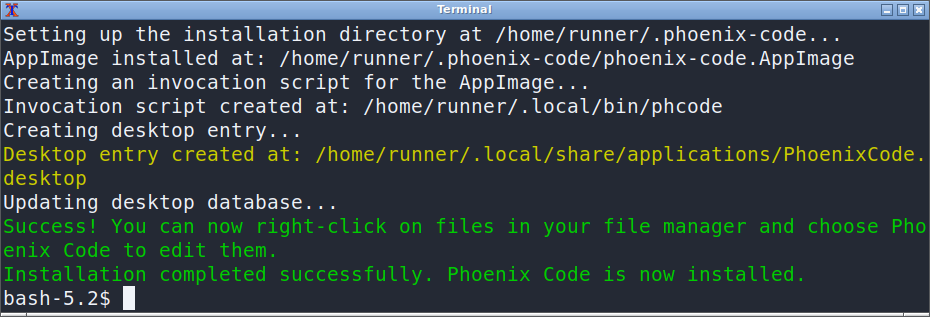
Terminal shows Reinstalling Phoenix Code... when it recognizes the existing installation. Wait for Installation completed successfully. Phoenix Code is now installed.
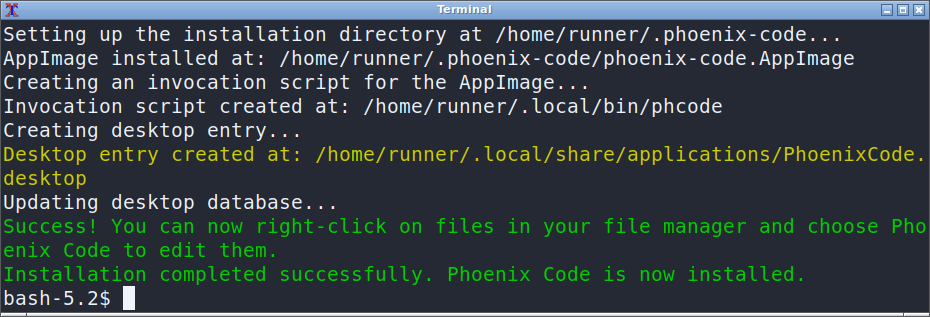
-
Open Phoenix Code from your applications menu. You can also type
~/.local/bin/phcodein Terminal and press Enter.
If you downloaded a standalone .AppImage yourself, use the standalone AppImage steps to open a fresh copy.
Check your project and recover unsaved changes
If Phoenix Code asks Recover Unsaved Files?, choose Restore. Open each recovered file, check the text, then choose File → Save File. Recovery can offer changes that Phoenix Code kept before the crash.
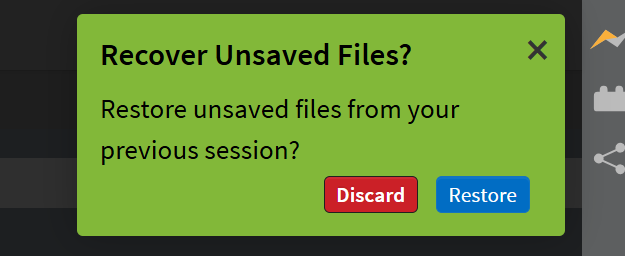
Learn more about File Recovery.
If your project is already open, click a file in the left sidebar and check its contents. If you see the Start Project dialog, choose Open Folder, select your saved project folder, then click a file in the sidebar. See how to open a project folder.
If Phoenix Code still closes
Open the Phoenix Code support discussions. Include your operating system and version, what you saw when you opened the app, and which step you tried. If you copied an error, remove any private names or file paths before sharing it. If no error appeared, say so.